

A structured electronic invoice is an invoice that is issued, sent, and received in a structured (machine-readable) format that allows it to be processed automatically and electronically.
The file format for a structured e-invoice is XML (Extensible Markup Language). The XML structure is defined in the Latvian national standard and must comply with the PEPPOL BIS Billing 3.0 specification.
Depending on how your customer is willing to receive e-invoices and how many e-invoices you plan to send each month, you can use the following options:
1) Sending e-invoices through an operator (Fitek)
This option is suitable if you send a relatively large number of e-invoices. The operator determines the cost of this service.
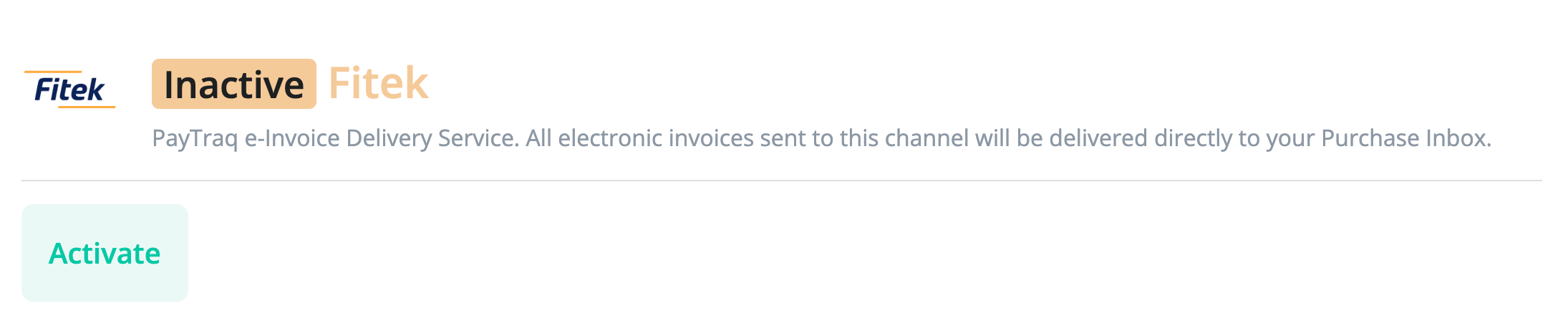
For activation, go to Purchases → Purchase Inbox → Channels, select Fitek, and click Activate.
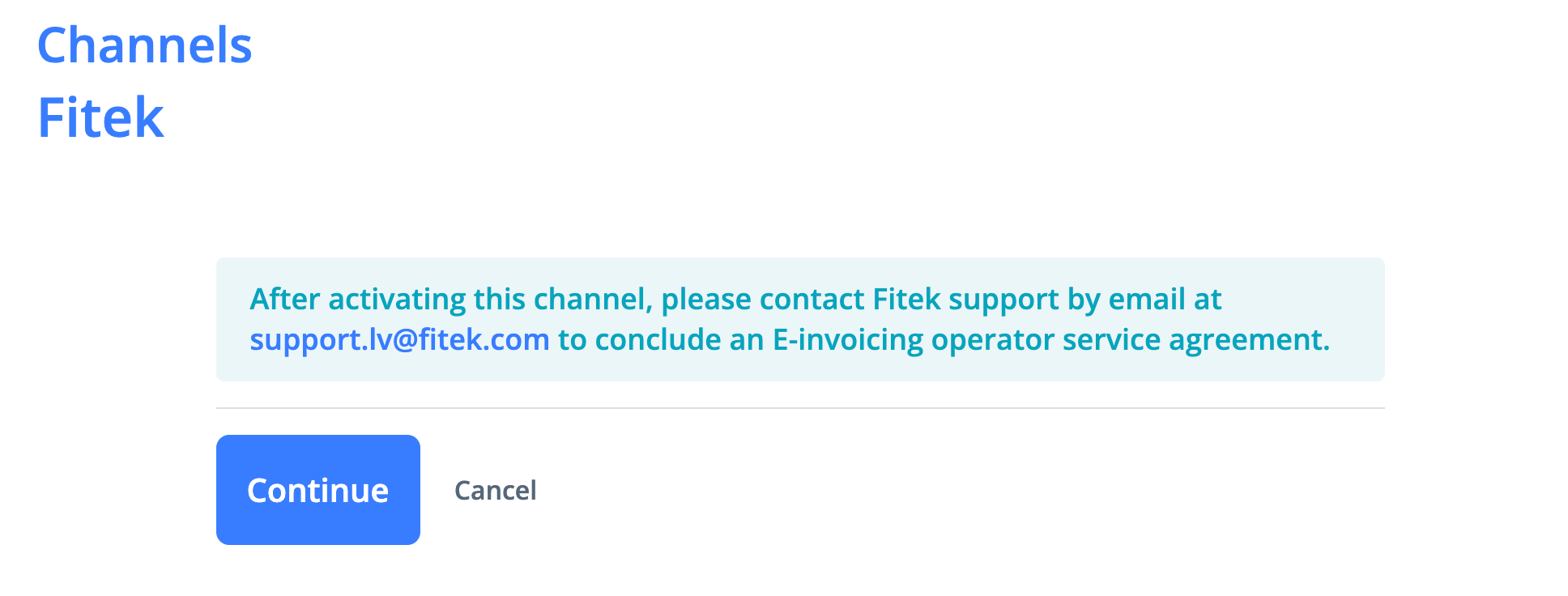
Select Continue.
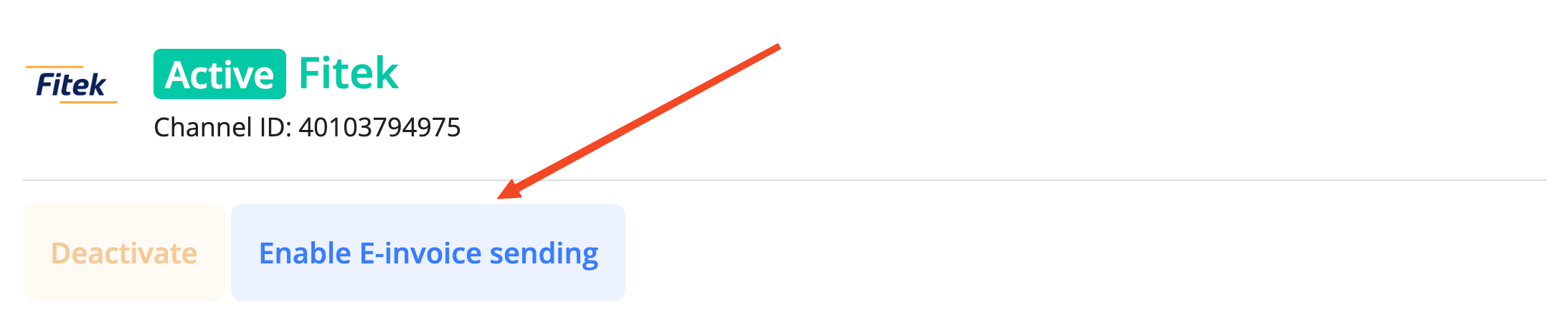
To turn on e-invoice sending through the operator, select Enable e-invoice sending. This button appears once activation is complete.
You can start sending and receiving e-invoices right away, but you must sign an agreement with Fitek after activation. To set up an agreement, reach out to Fitek customer support at support.lv@fitek.com.
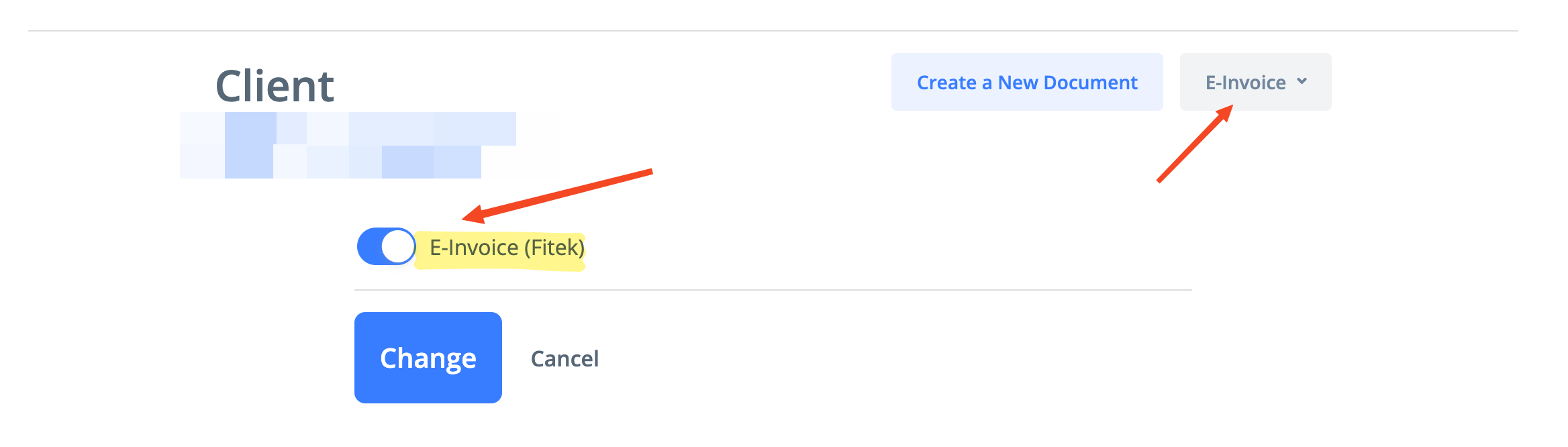
For each customer to whom you plan to send e-invoices directly through the operator, enable the corresponding option in the E-Invoice section of their customer record. If e-invoices can be sent to that customer through Fitek, this will be indicated.
To send an e-invoice, click Send e-invoice.
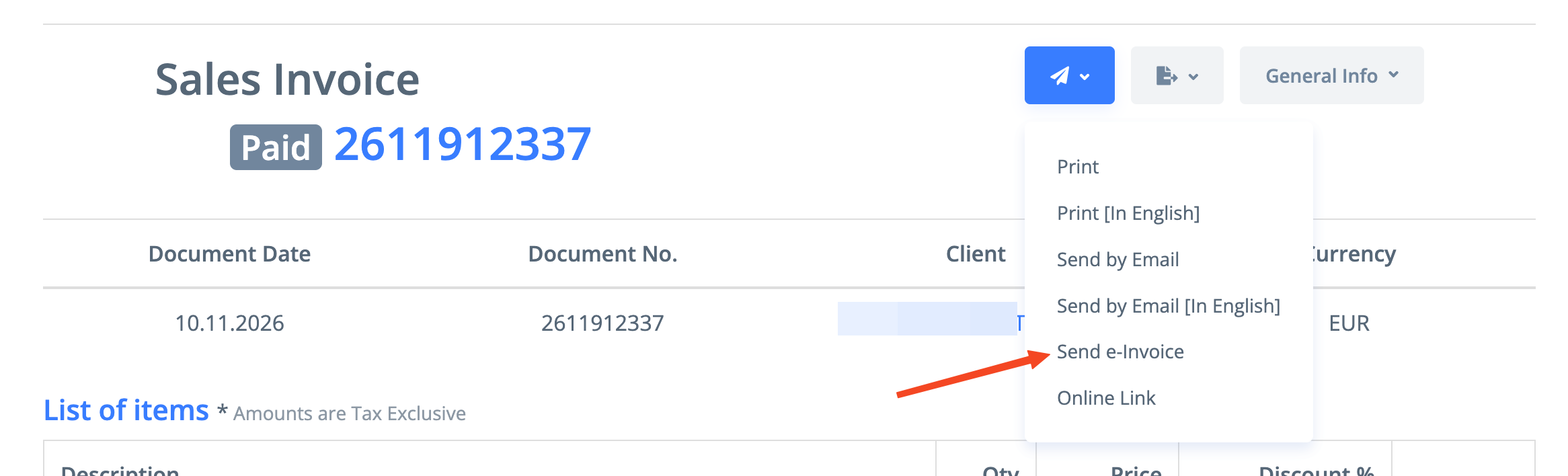
If you want to email a PDF invoice and send an e-invoice directly through the operator at the same time, use the invoice email form by clicking Send by email.
In this form, select the Send e-invoice checkbox. This checkbox will be selected by default if the E-Invoice option is enabled in the customer’s record.
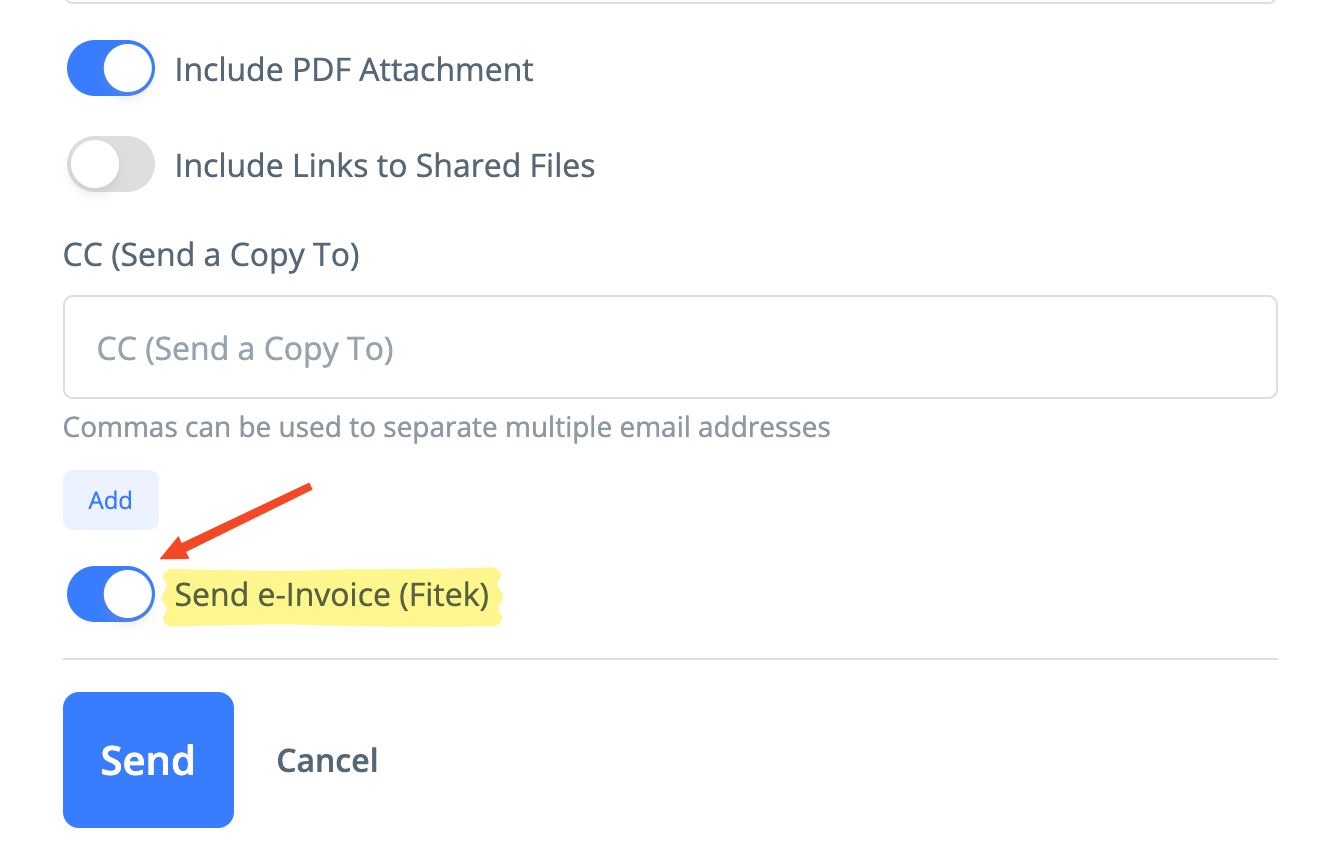
2) Sending e-invoices as email attachments
This option is suitable if your customer agrees to receive e-invoices as XML files attached to emails.
To send an e-invoice to an email address, open the invoice email form by clicking Send by email.
In this form, select the Send e-invoice checkbox. This checkbox will be selected by default if the E-Invoice option is enabled in the customer’s record.
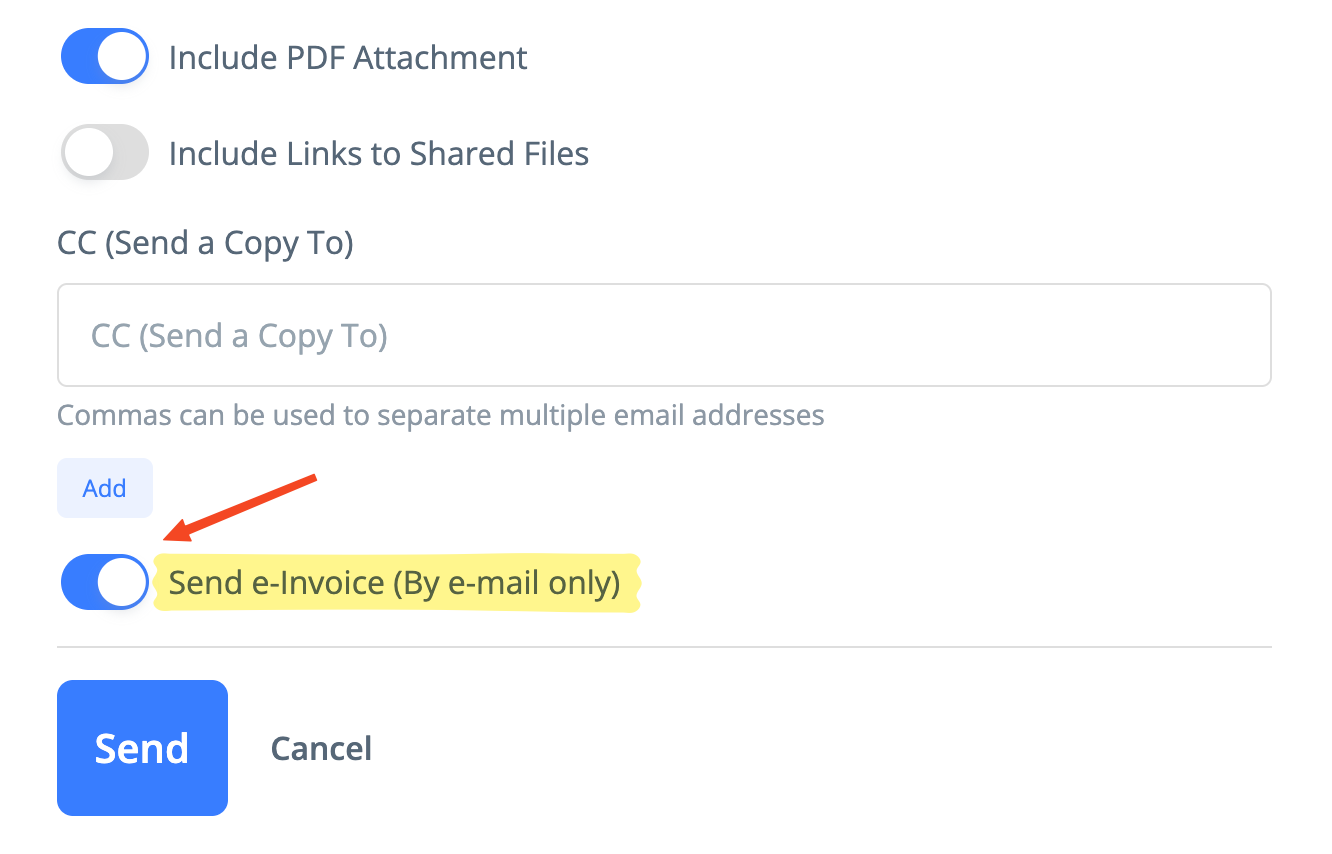
3) Sending e-invoices to an official e-address (manually)
This option is suitable if you send only a few invoices per month.
To save an e-invoice as an XML file, click Peppol/UBL.
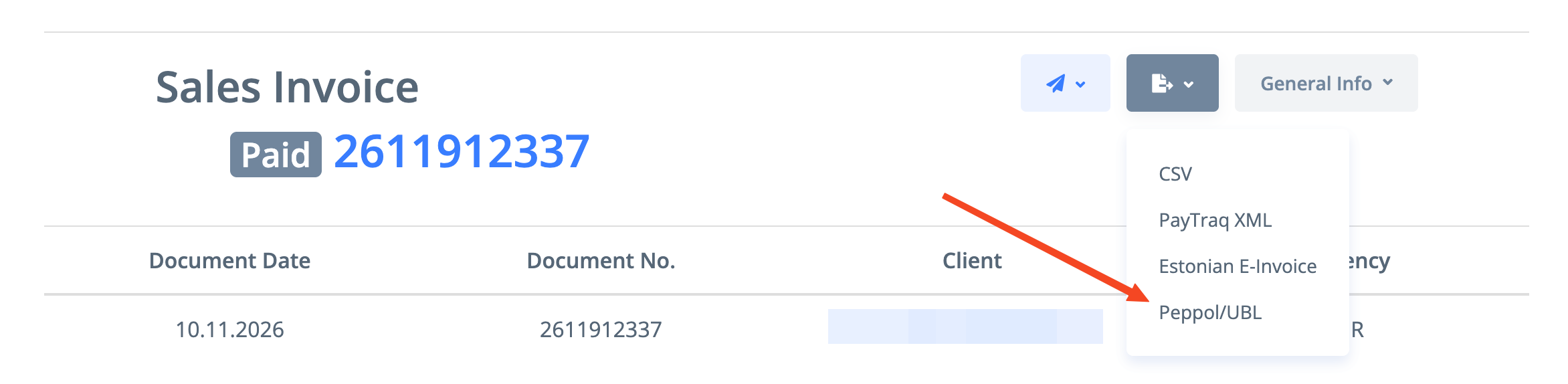
Then go to Latvija.gov.lv and open the E-invoices section. Create a new e-invoice and upload the XML file.