

PayTraq allows you to send invoices and other documents directly from the program using your own Gmail or Google Workspace email account.
By activating the Gmail add-on, you can authorize PayTraq to send outgoing emails on behalf of your company using your chosen Google account.
The integration is configured at the company level. Once add-on actived, all outbound emails from all users of that company are sent through the one connected Google account. So choose the account carefully, because everyone's emails will go through it, we recommend connecting a shared company mailbox rather than an employee's personal mailbox.
The connection process is straightforward and requires no additional email server configuration. You only need to activate the Gmail add-on in PayTraq and authorize access through your Google account.
Activate the Gmail Add-on
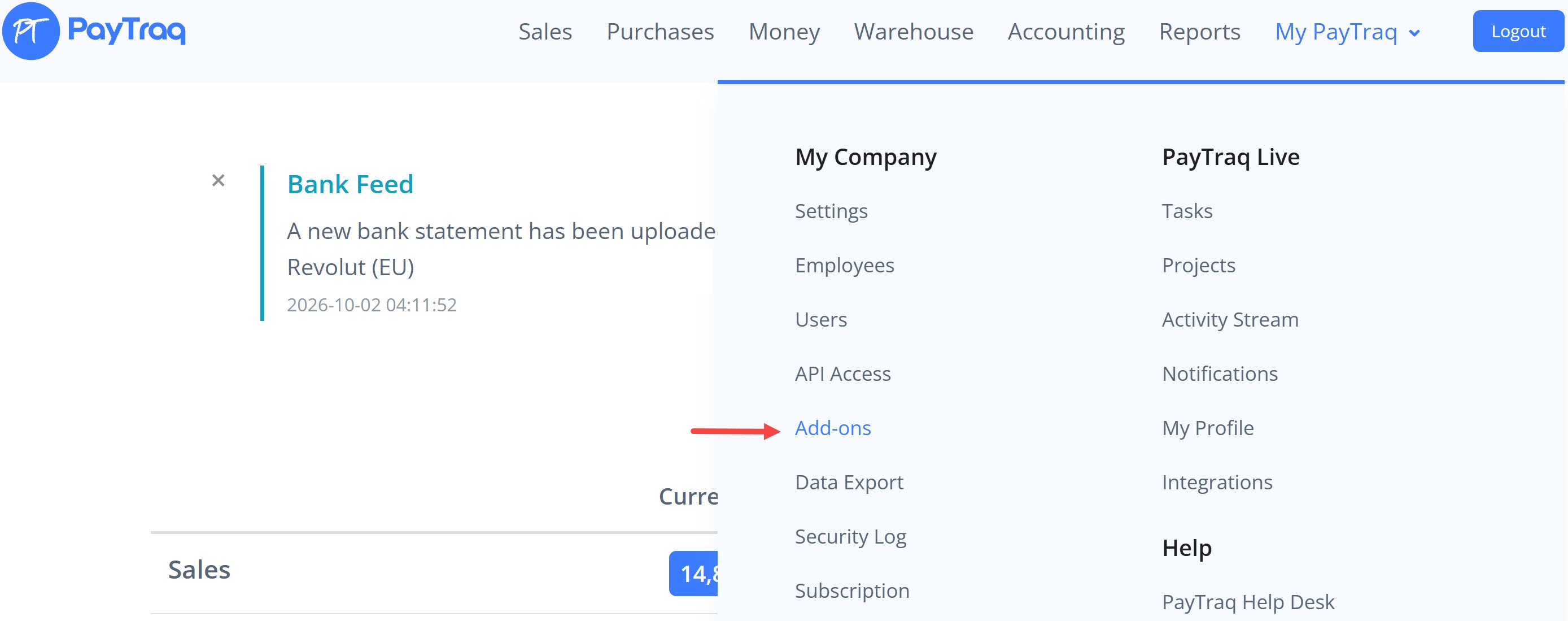
Open My PayTraq → Add-ons section from the main navigation menu.
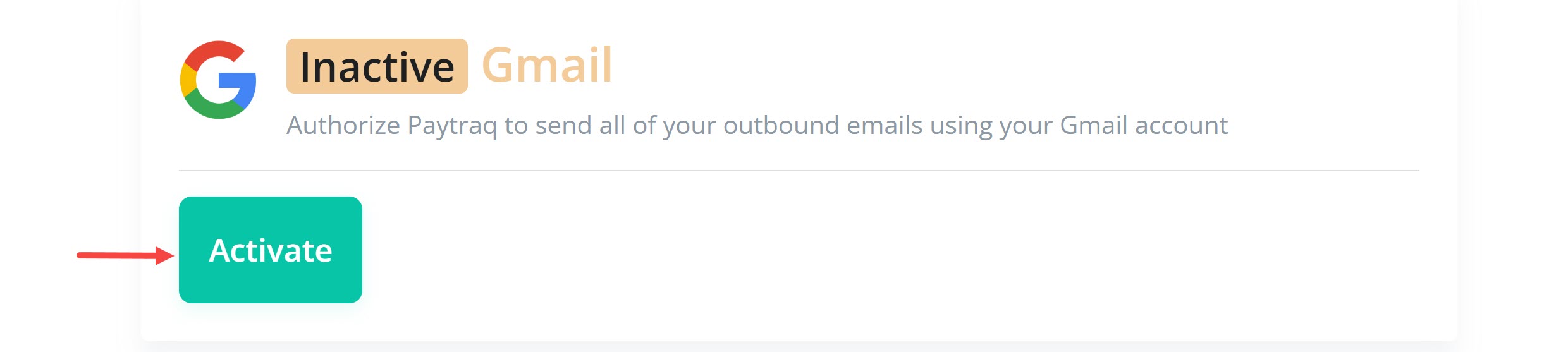
Locate the Gmail add-on and click Activate.
PayTraq will redirect you to Google's authorization service – Choose an account screen, where you will be asked to select the Google account you want to connect.
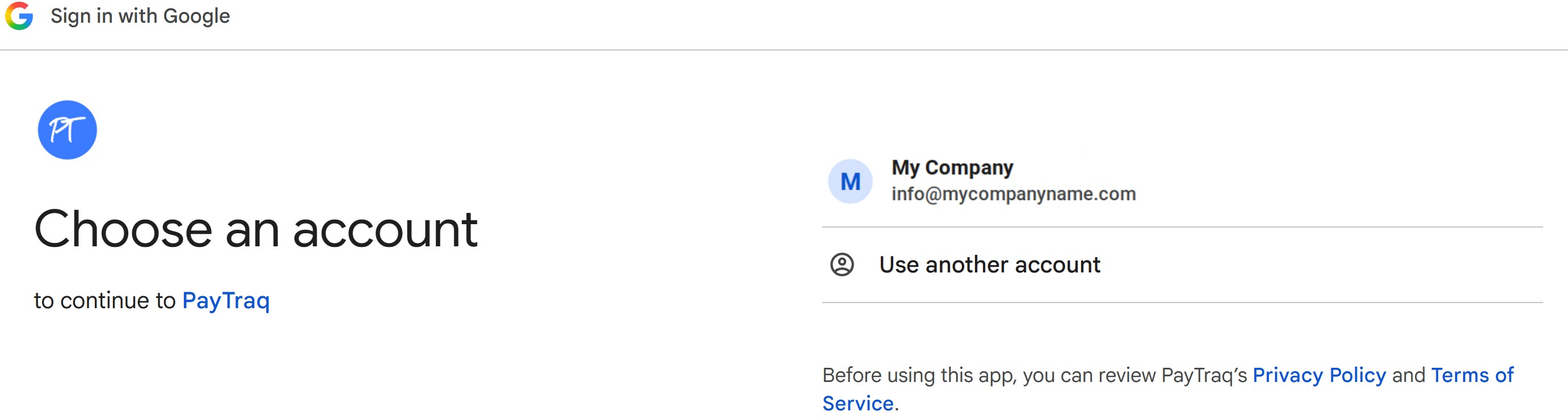
This is Google's standard authorization process, which allows you to grant an application specific permissions without sharing your Google account password with that application.
If the account is already signed in to your browser, it will appear in the list of available accounts. Otherwise, select Use another account and sign in using the appropriate Google account credentials.
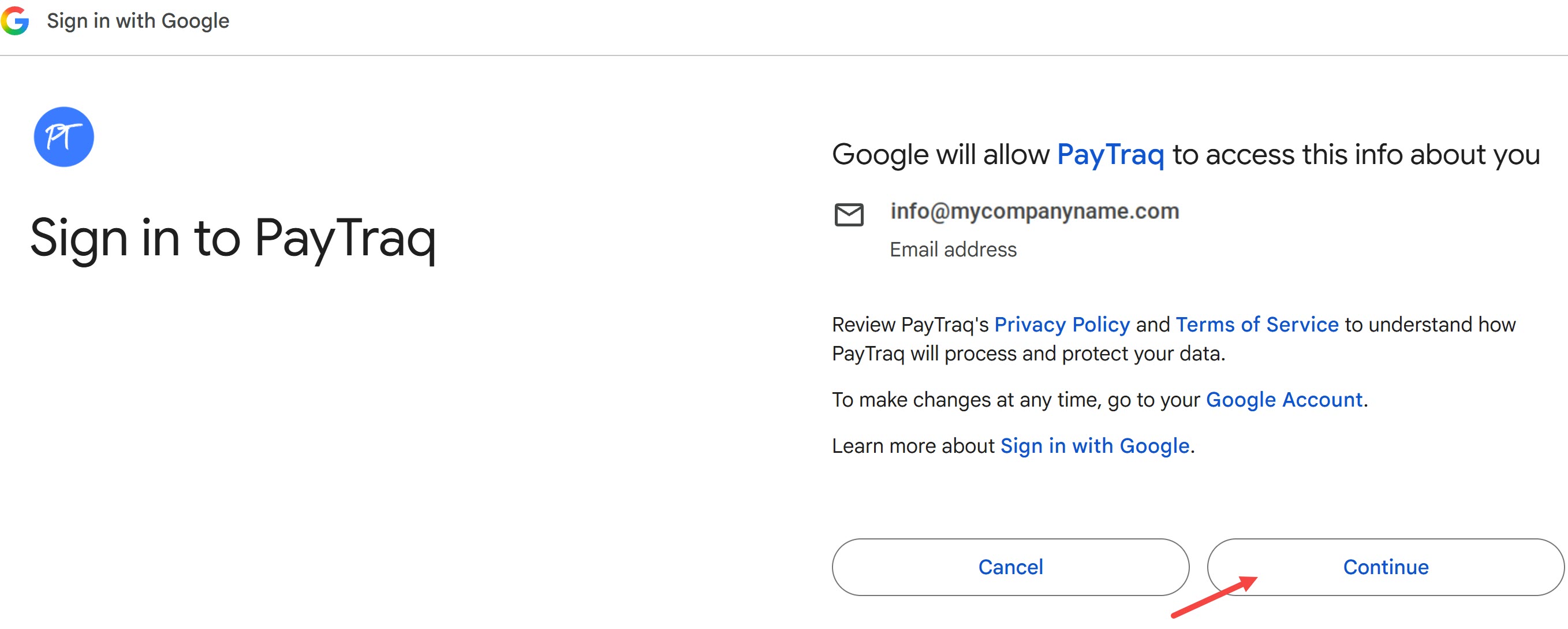
Google shows the basic information PayTraq will receive – your email address.
Click Continue to proceed to the next authorization screen.
Оn the next screen мake sure the Send email on your behalf checkbox is ticked. This is the only permission PayTraq asks for.
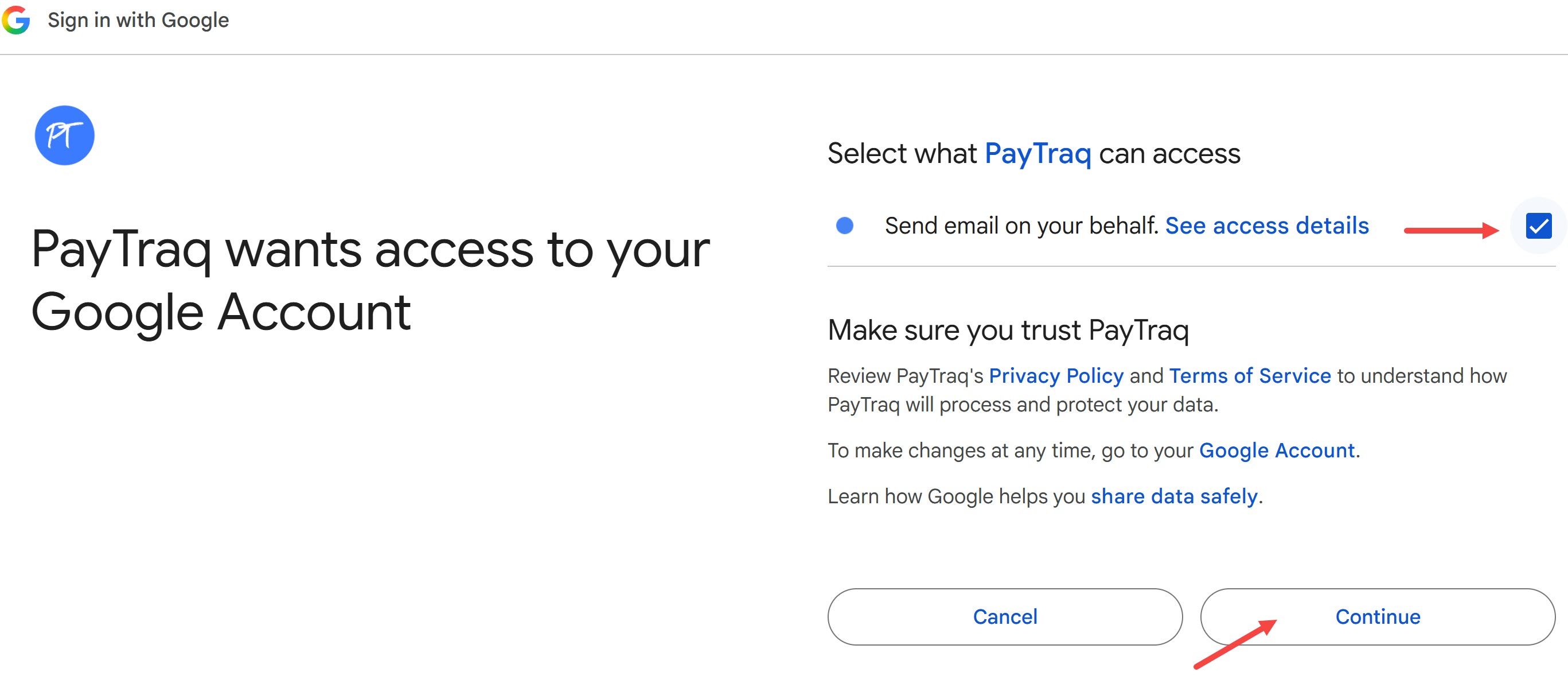
Then click Continue, Google will redirect you back to PayTraq.
Add-on's status should now be displayed as Active, together with the email address of the connected Google account. No additional configuration is required.
All emails sent from PayTraq through the connected Gmail or Google Workspace account will automatically appear in the Sent folder of that account.
In PayTraq, the final email status is "Delivered" once Google has accepted the message for sending. Any bounce notifications and/or undelivered message reports will be sent directly to your connected Google email account.
For Google Workspace users: If your Workspace administrator restricts third-party apps, you may instead see a message that the app is blocked by your organisation. In that case, ask your administrator to allow PayTraq in the Google Admin console Security → API controls → third-party app access.
Deactivating or changing the connected account
To deactivate: go to My PayTraq → Add-ons and click Deactivate under Gmail. Sending automatically reverts to PayTraq's mail server – no further setup is needed.
To switch to a different Google account: deactivate the add-on, then activate it again and choose the other account.
If you removed PayTraq's access in your Google Account settings or the connection stops working for any other reason, deactivate and re-activate the add-on to reconnect it.