

This article explains the information needed to prepare UAE electronic invoices and credit notes, including company details, customer identification, transaction types and common validation requirements.
A UAE e-invoice is a structured electronic document following the PINT-AE specification.
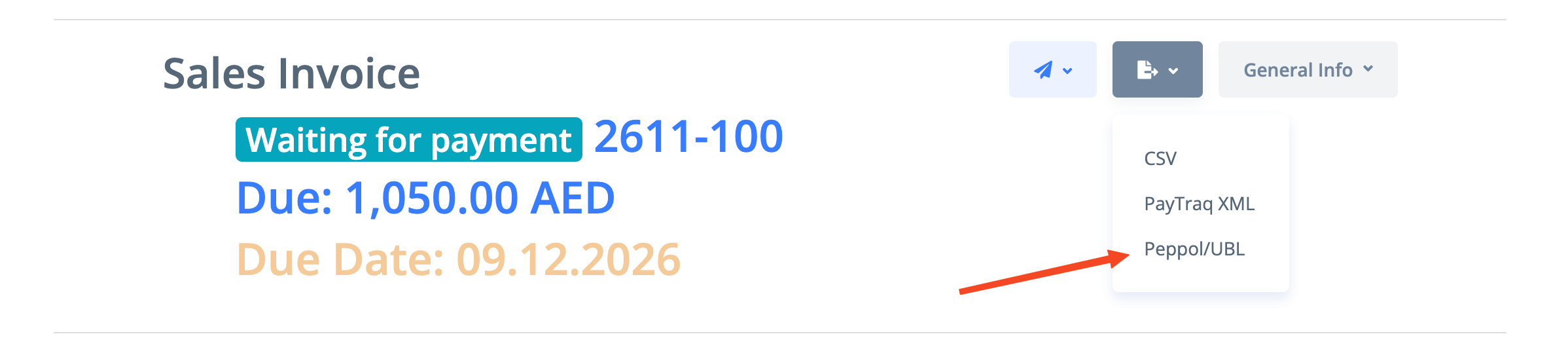
An Invoice/Credit Note can be saved as UBL Peppol PINT-AE XML format by select Peppol/UBL as the export option.
Before you begin
Company and customer records
Check and complete your company and customer records before generating an e-invoice.
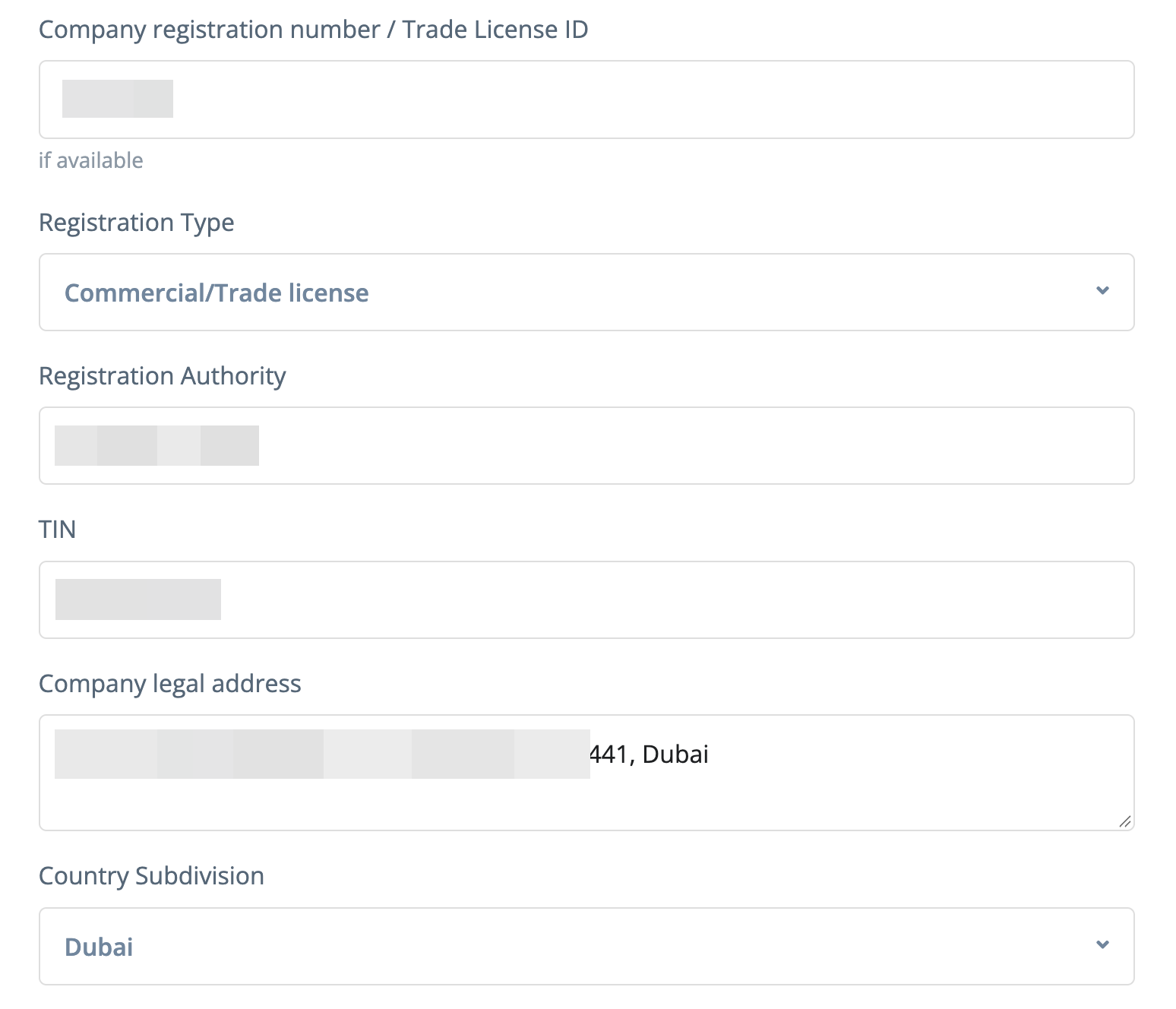
You company registration data can be found through Settings -> Company Profile -> General Info
Make sure that the Company registration number / Trade License ID, Registration Type, Registration Authority, TIN, Company legal address and Country Subdivision are filled in.
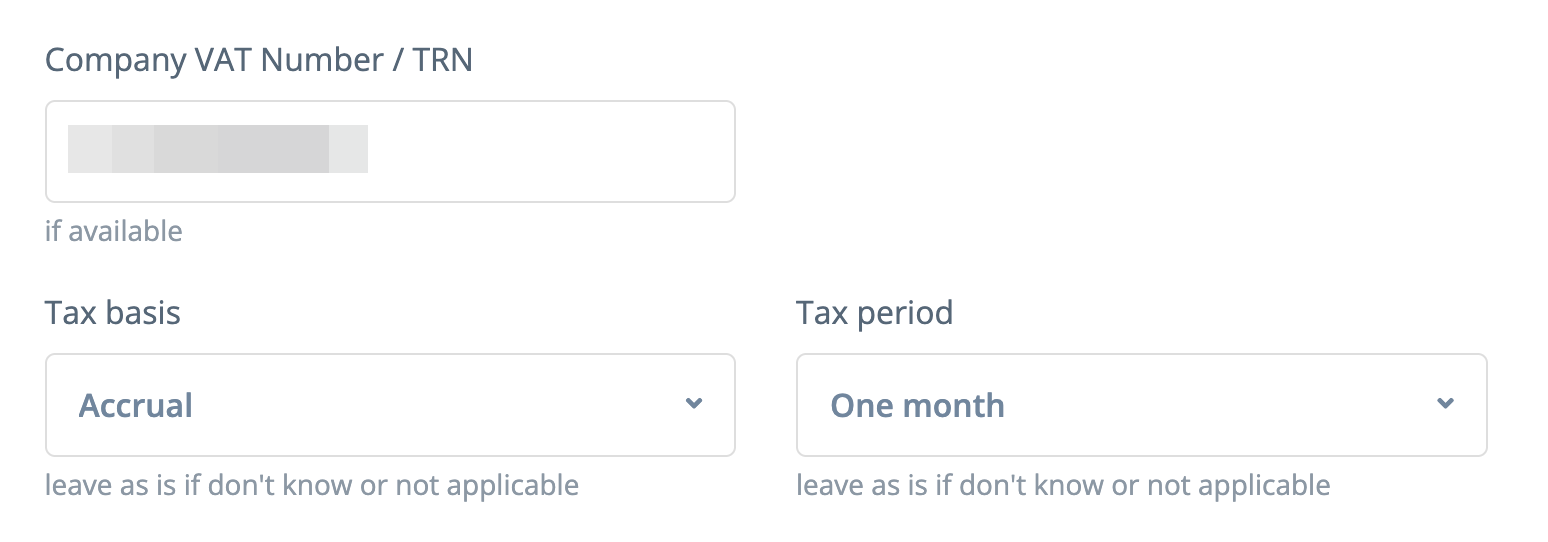
If your company is VAT registered, fill in your Company VAT Number / TRN by going to Settings -> Company Profile -> Tax Info.
TIN - 10-digit Tax Identification Number
TRN - The 15-digit VAT registration number starting with "1" and ending with "03", if VAT registered. Do not substitute a Corporate Tax registration number.
The TIN, VAT TRN and company registration number serve different purposes. Do not enter the same identifier in all fields unless it genuinely represents the required identifier.
For UAE electronic addressing, scheme 0235 identifies the TIN. A non-VAT-registered seller still needs its applicable tax identification details.
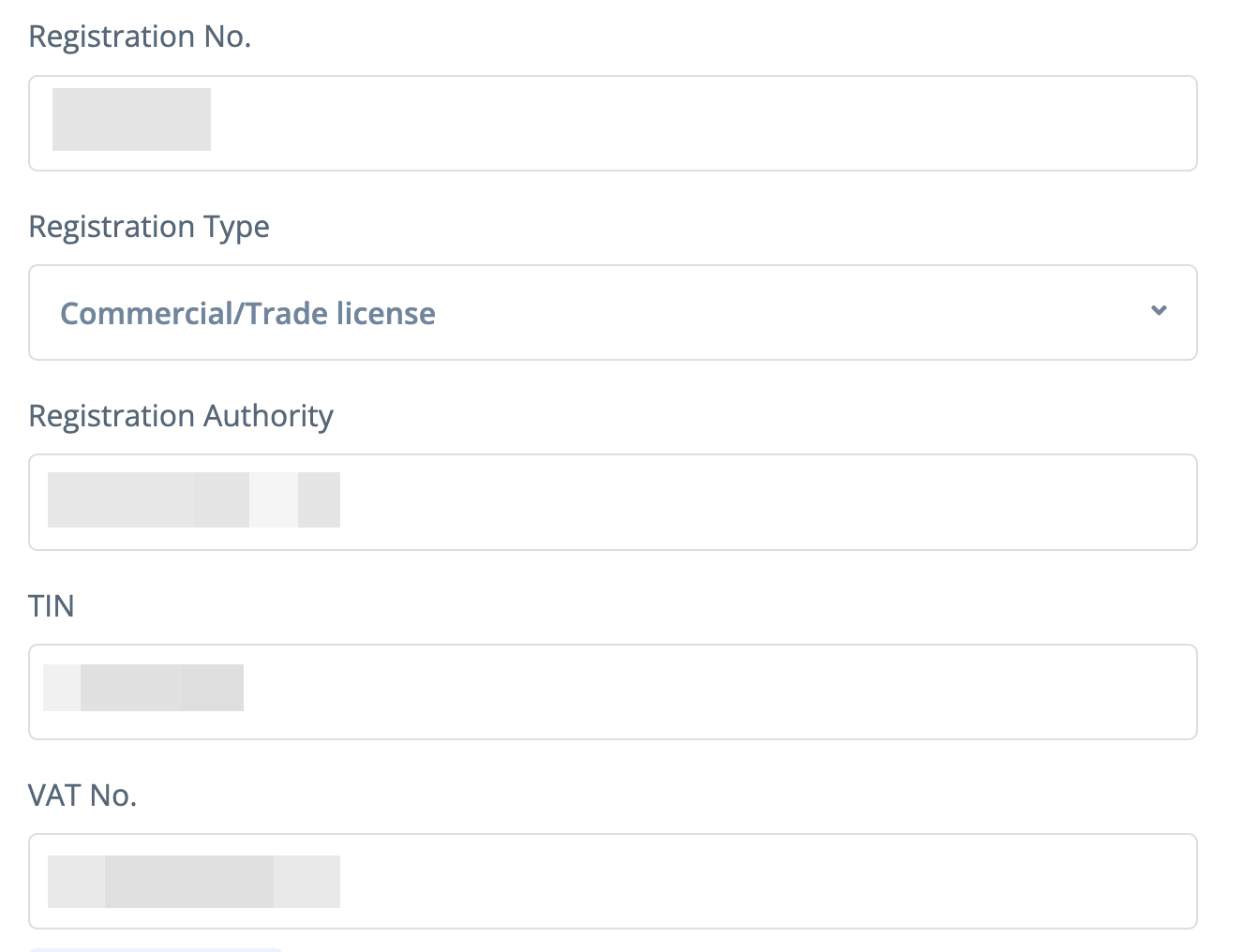
Collect the following information for UAE business customers:
Field | Requirement |
|---|---|
Name | Legal customer name. Required. |
TIN | Record the customer’s TIN where assigned; it is used for UAE electronic identification. |
VAT No. | Provide the actual VAT TRN if the customer is VAT registered. It is specifically required for reverse-charge transactions. |
Registration No | Collect the official registration number. Its mandatory status depends on the document and identification scenario; it is required for document types |
Registration type | Required when the customer uses electronic address scheme |
Registration authority | Required for registration type |
Address | Address with city and emirate. |
Country Subdivision (Emirate) will be extracted automatically from the address field so make sure that the emirate is included into address value.
Do not assume that every customer identifier is mandatory on every invoice. However, keeping the customer record complete avoids missing information when a different document type or transaction is used.
A customer without a usable Peppol address may require a predefined endpoint. Its selection depends on the customer’s status and transaction scenario.
Invoice transaction types
Transaction types identify special circumstances and can trigger additional information requirements. More than one may apply where the combination is permitted.
Transaction type | Additional information or effect |
|---|---|
Free trade zone | Provide the beneficiary’s TRN or TIN in Beneficiary ID. |
Deemed supply | Apply the deemed-supply identification and payment rules. Do not select this merely because an invoice is unpaid. |
Profit margin scheme | Apply the margin-scheme tax treatment; UAE PINT uses category |
Summary invoice | Provide the invoicing period covering the consolidated supplies. |
Continuous supply | Identify an ongoing supply arrangement. Record the applicable billing period and frequency for the arrangement. |
Disclosed agent billing | Provide Principal ID, containing the principal’s VAT TRN. It must differ from the seller’s VAT identifier. |
Supply through e-commerce | Provide the delivery address, including street, city, subdivision and country. |
Export | Provide the foreign delivery address, including street, city, subdivision and country. Select export only when the transaction qualifies as an export. |
The summary-invoice flag explicitly makes the invoicing period mandatory. The continuous-supply flag should not be treated as an identical validation trigger. Summary-invoice rule
Beneficiary and principal details do not replace the normal customer and supplier records. Beneficiary requirement, principal requirement, principal identification restriction
Delivery requirements apply to both invoices and credit notes. E-commerce rule, export rule
Transaction type can be selected on the invoice form

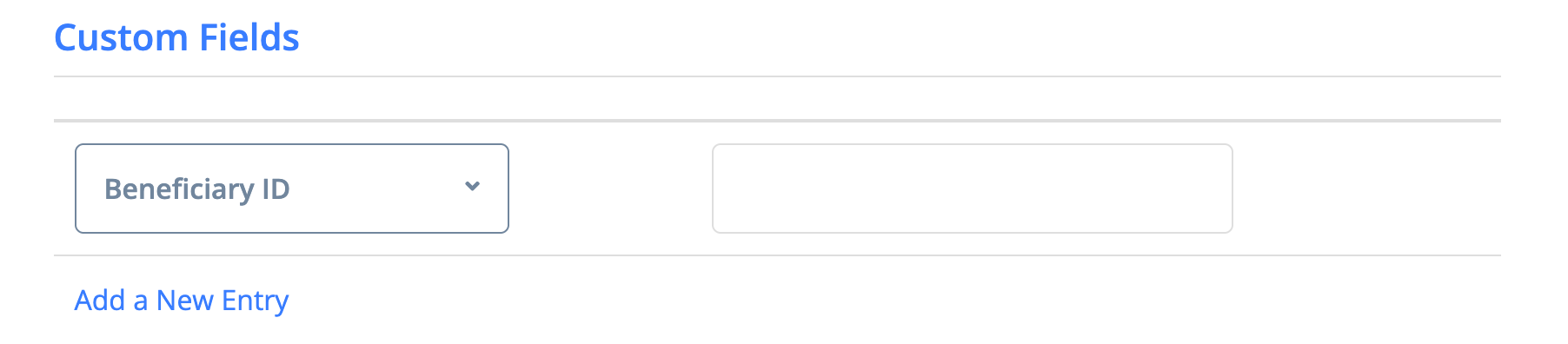
Beneficiary ID and Principal ID can be selected as pre-defined custom fields.
Credit note reasons and original invoice references
Select a credit note reason that reflects the actual adjustment:
Code | Reason |
|---|---|
| The supply was cancelled. |
| A change in the nature of the supply changed its tax treatment. |
| The agreed consideration changed, including applicable bad-debt adjustments. |
| Goods or services were returned, with consideration refunded wholly or partly. |
| Tax was charged or tax treatment applied incorrectly. |
| Volume discount. |
For types 381 and 81, provide the original invoice reference unless the reason is VD. The current published validation expression expects the preceding-invoice reference block to be absent for VD. Reference rule
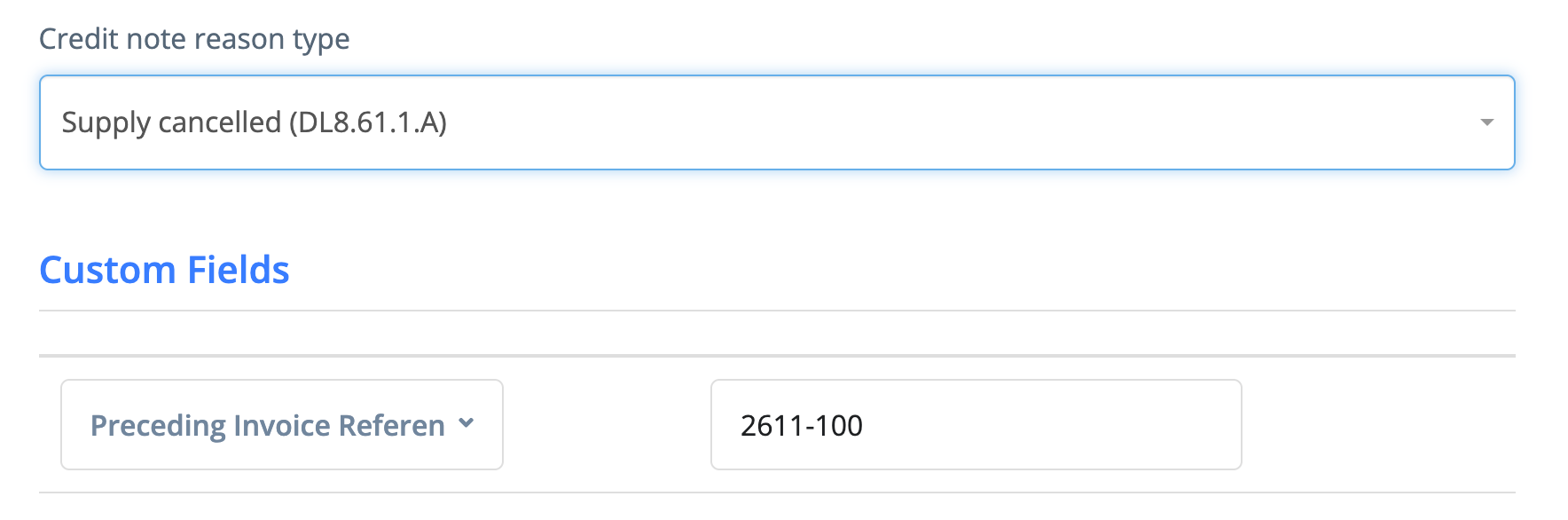
The reference to the original invoice can be included as Preceding Invoice Reference from the predefined custom fields (it is added automatically when a credit note is generated from the invoice).
VAT Exempt and Reverse Charge Tax Keys
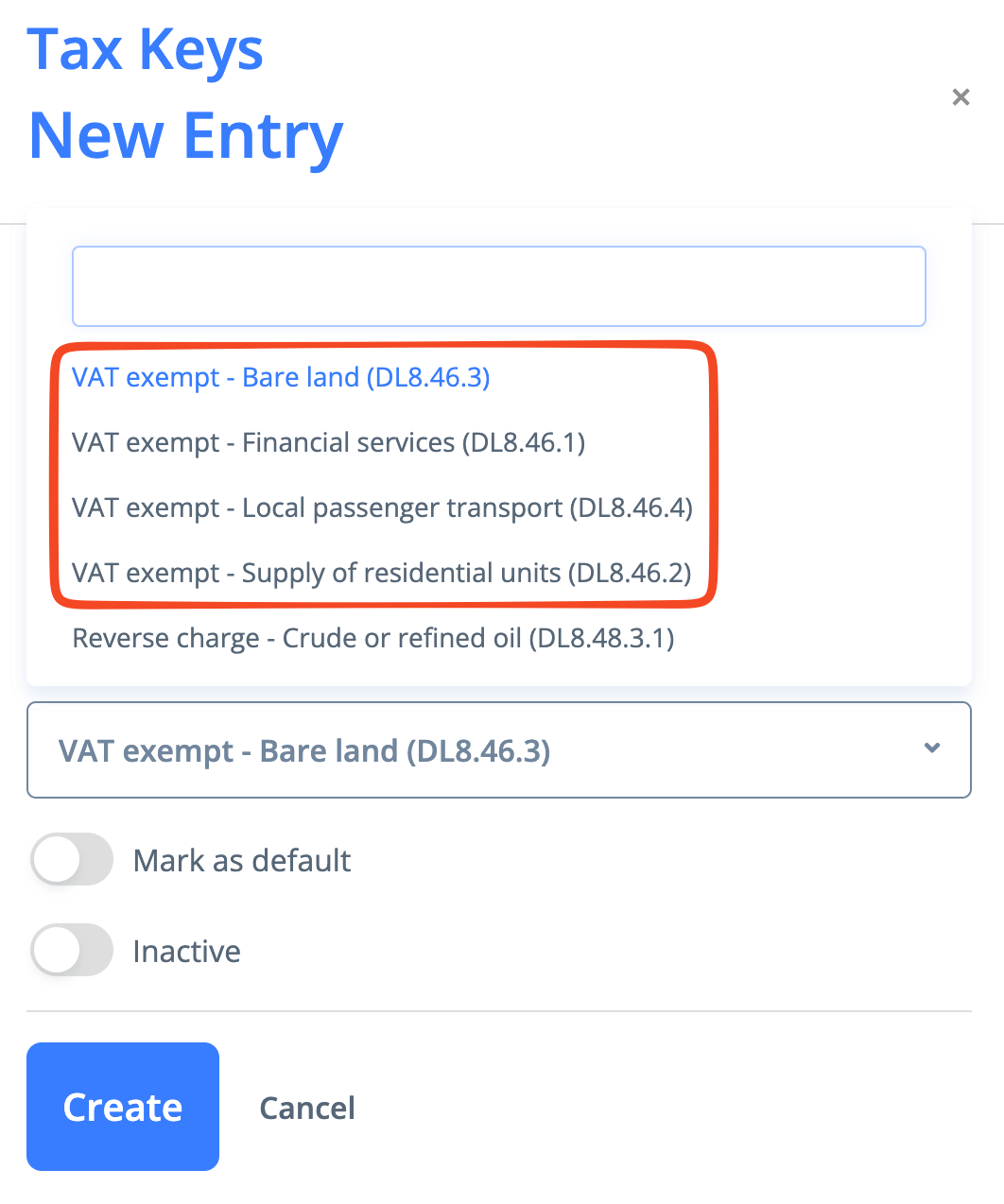
Keys for VAT Exempt and Reverse Charge transactions need a distinct code that identifies each transaction uniquely. Each of these codes is linked to its own tax key type. By default, not all tax keys exist for any type. Please confirm that you have created the necessary tax keys under Settings -> Accounting -> Tax Keys by choosing the right type, and that the correct tax key has been assigned to the invoice item.
VAT Exempt Tax Key Types
Reverse Charge Tax Keys Types
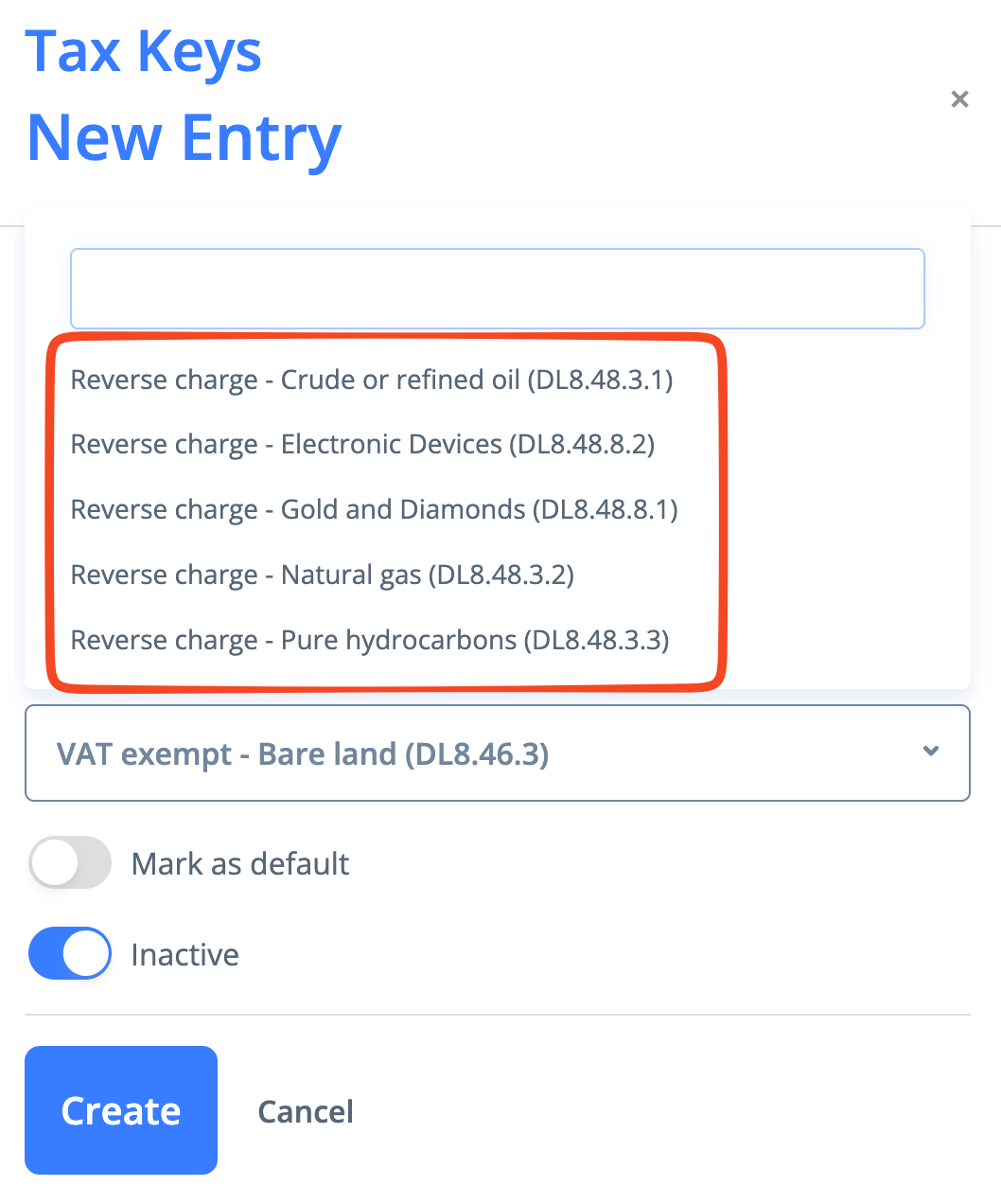
When reverse charge applies, you must also provide cac:CommodityClassification/cbc:NatureCode for the item. Store this value in the Barcode (EAN-13/EAN-8/UPC-A) field.
Submitting E-Invoices
Integration with E-Invoice Operator
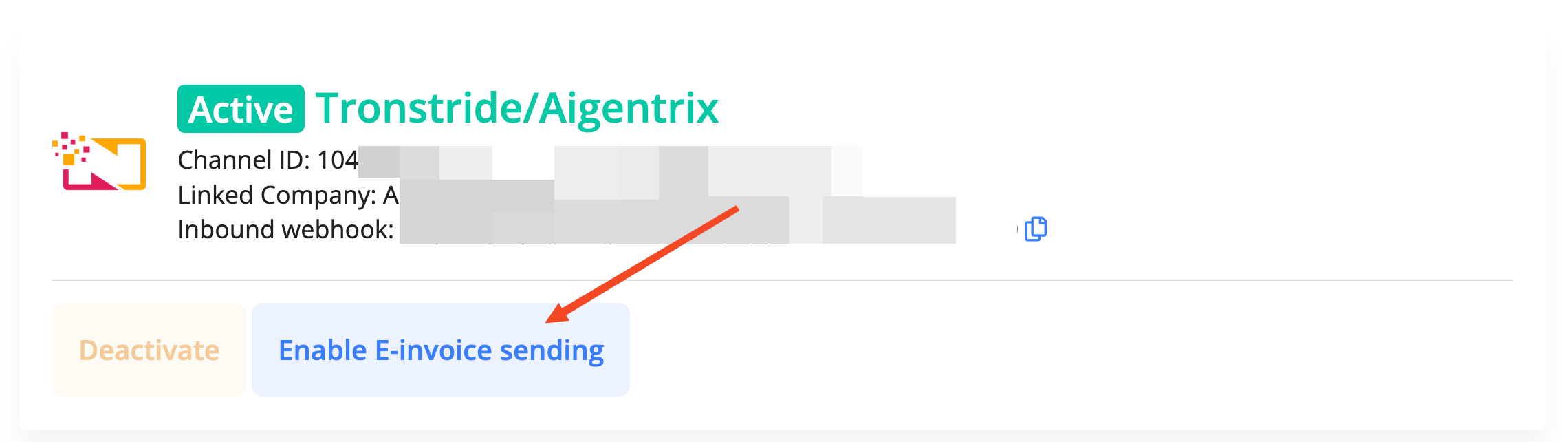
The integration with one of supported e-invoice operators should be active. To start receiving and sending e-invoices you need to select one of the supported operators and activate the corresponding integration channel in Purchase Inbox (Purchase -> Purchase Inbox -> Channels).
The option "Enable e-invoice sending" should be enabled for the operator connection.
E-Invoice option in the Client's Card
In the client's card the E-Invoice option should be enabled.
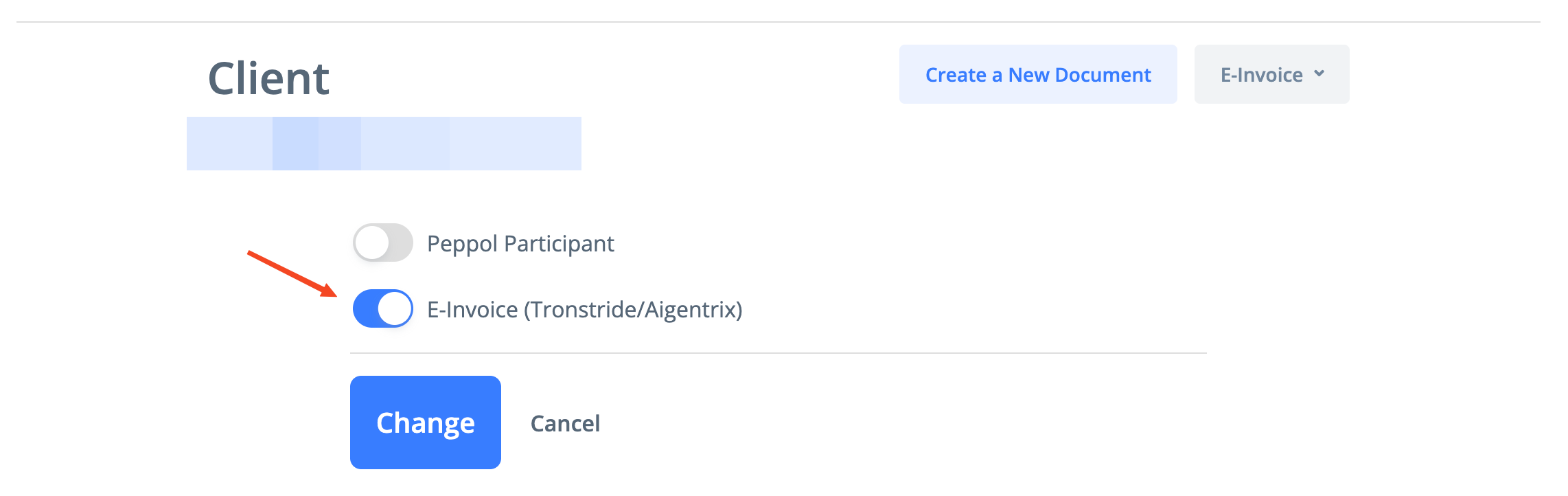
Enable the "Peppol Participant" option only when you are sure that a customer is able to receive e-invoices. If "Peppol Participant" is not enabled, the e-invoice will be sent to the Federal Tax Authority only, using a special pre-defined endpoint (0235:9900000098) instead of the customer's endpoint (0235:TIN).
Sending E-Invoice
E-invoice can be send either by clicking on the "Send e-Invoice"

or by enabling Send e-Invoice checkbox while sending the invoice by e-mail

E-Invoice Status
The status timeline (Tronstride Integration) can be checked from the invoice form
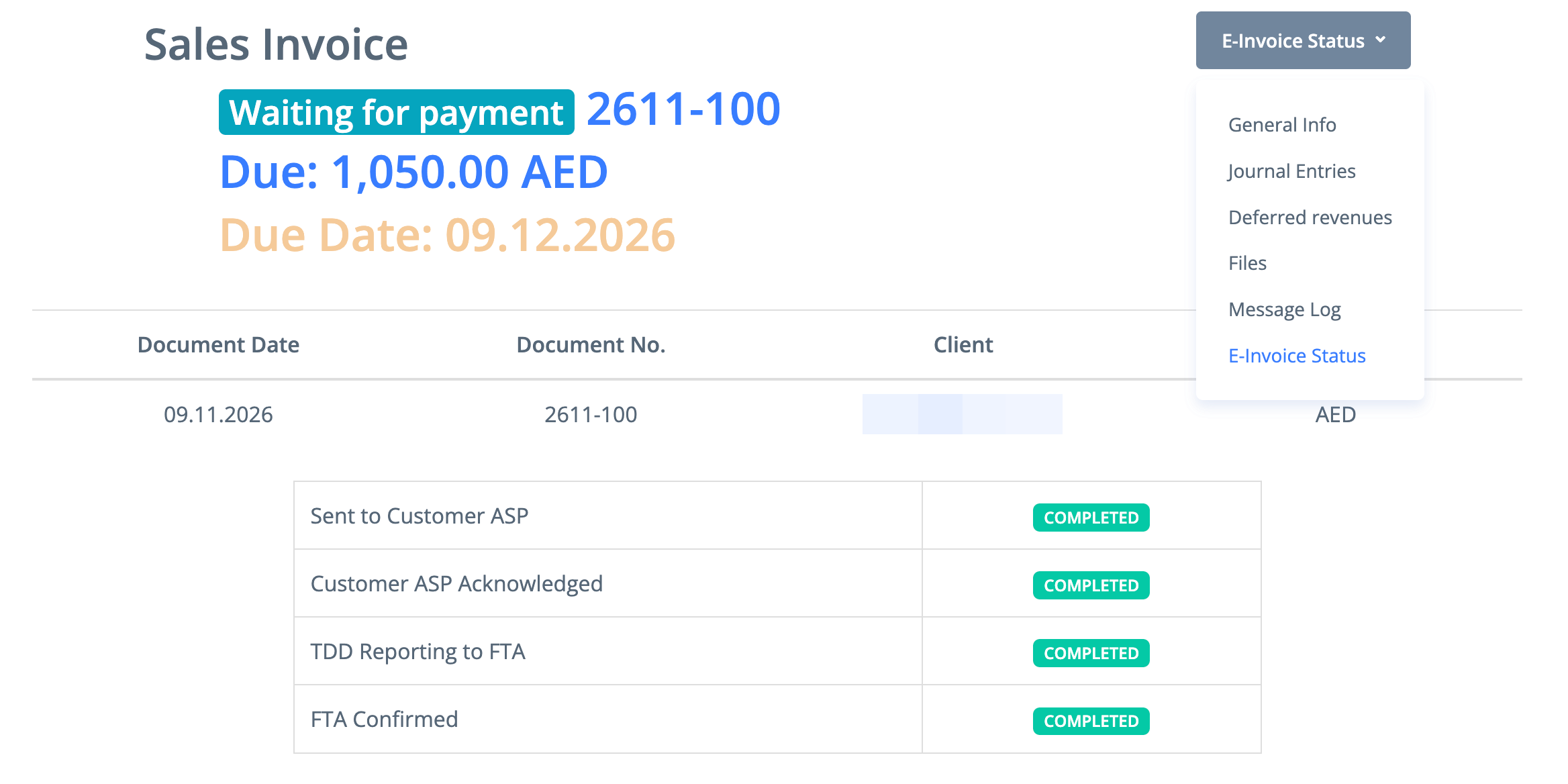
The Message Log page will also contain a record of the e-invoice delivery through the operator. Once the invoice is delivered or rejected, the status of the record will be updated.