

Shopify channel in Sales Inbox
This channel can be used for automatic uploading of all of your Shopify orders. It also includes such features as automatic processing of all incoming orders, generation and execution of sales documents as well as automatic adding of payments.
Channel Activation
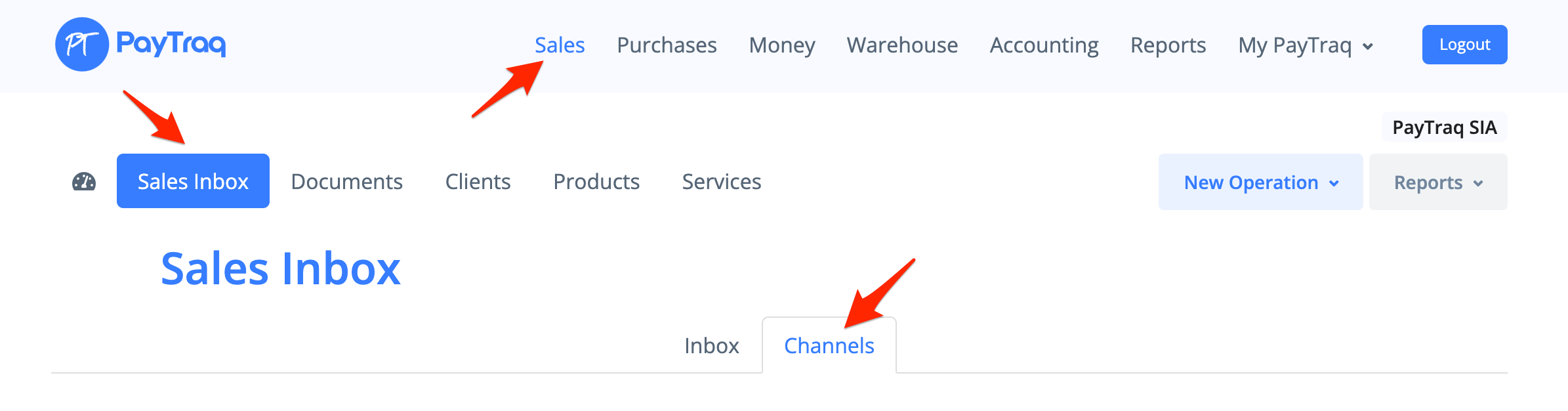
For activation you need to go to Sales -> Sales Inbox -> Channels
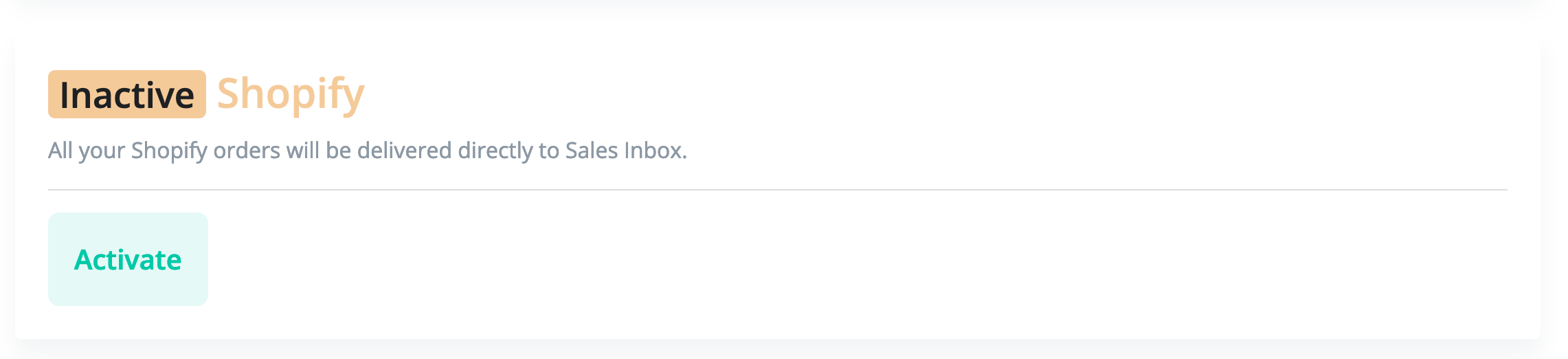
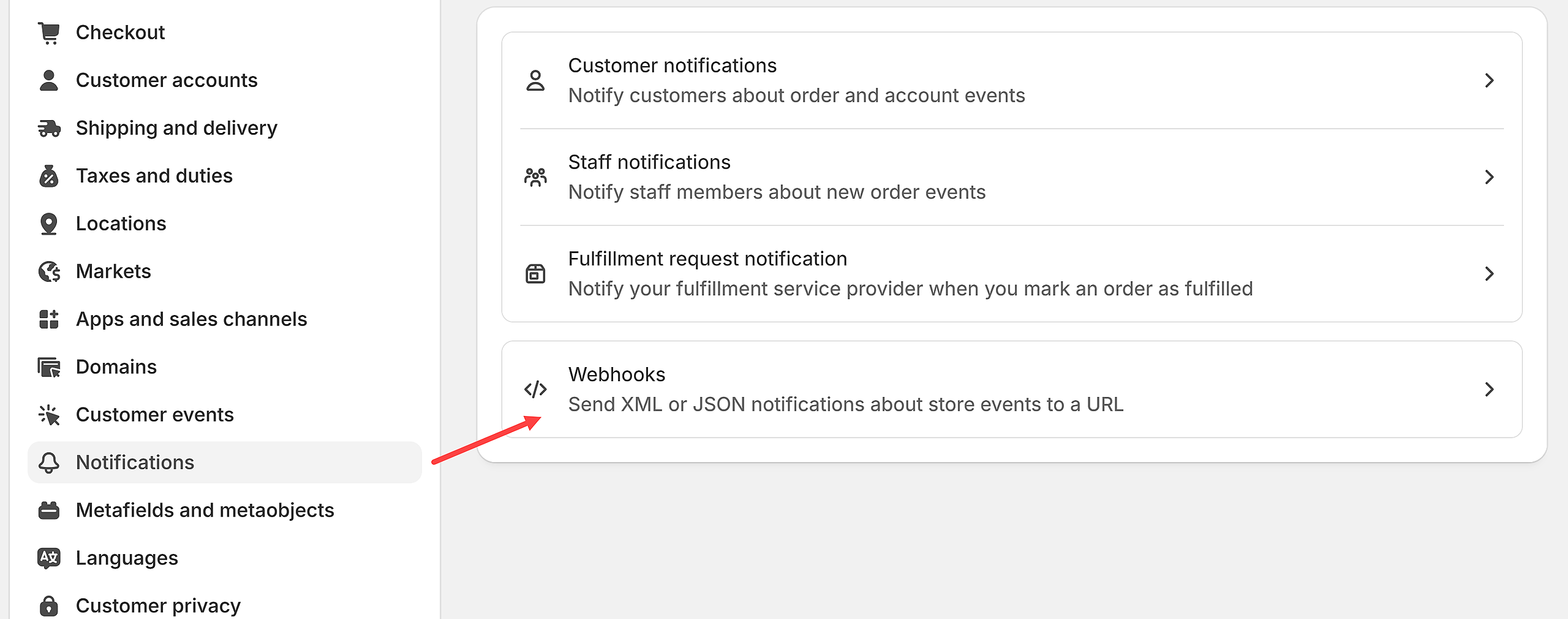
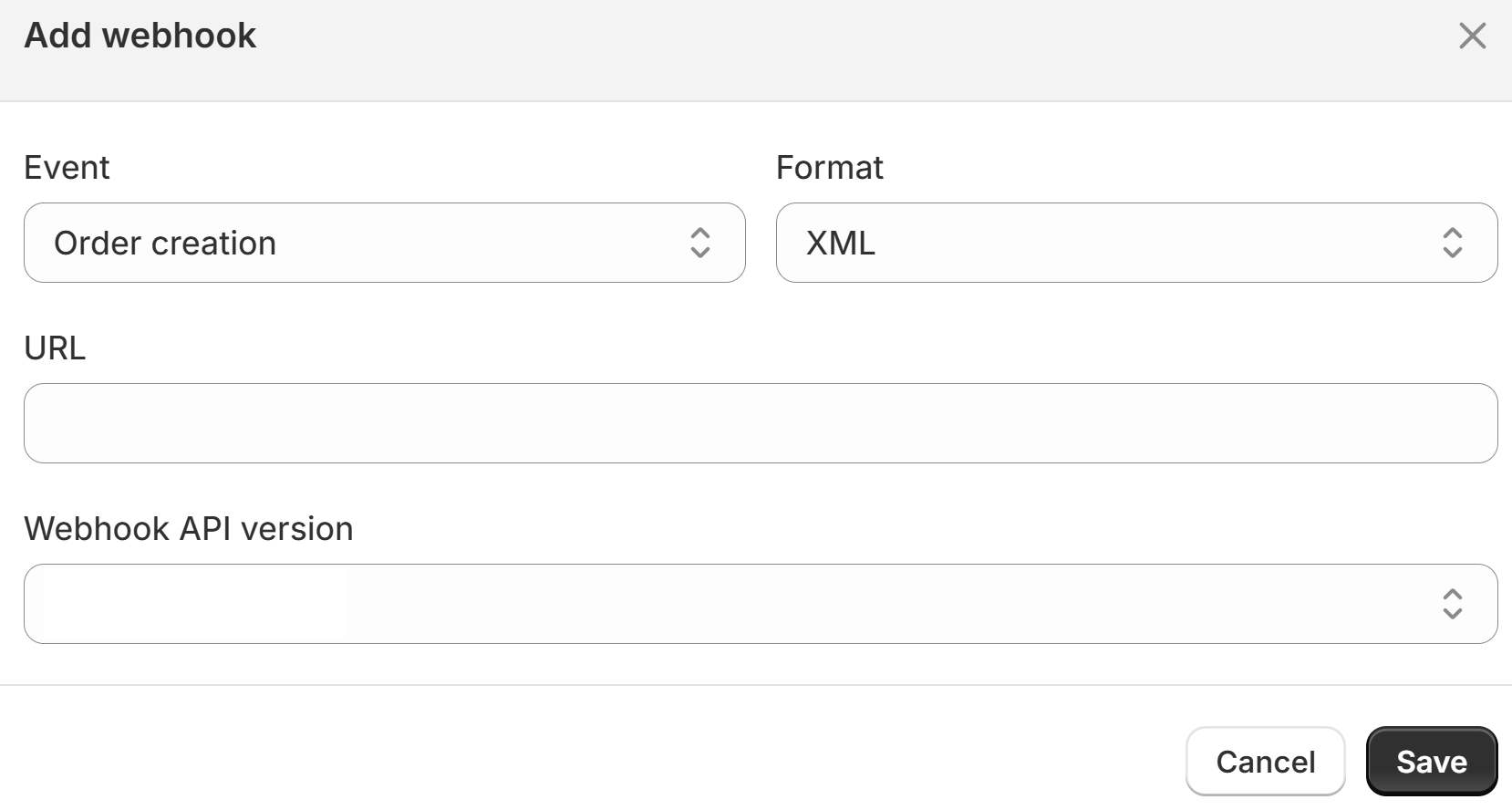
Once the channel is activated you need to go to Notifications in your Shopify Admin panel and create a new webhook with the following data:
Event - Order Creation
Format - XML
URL - Your PayTraq Channel URI
Auto Processing
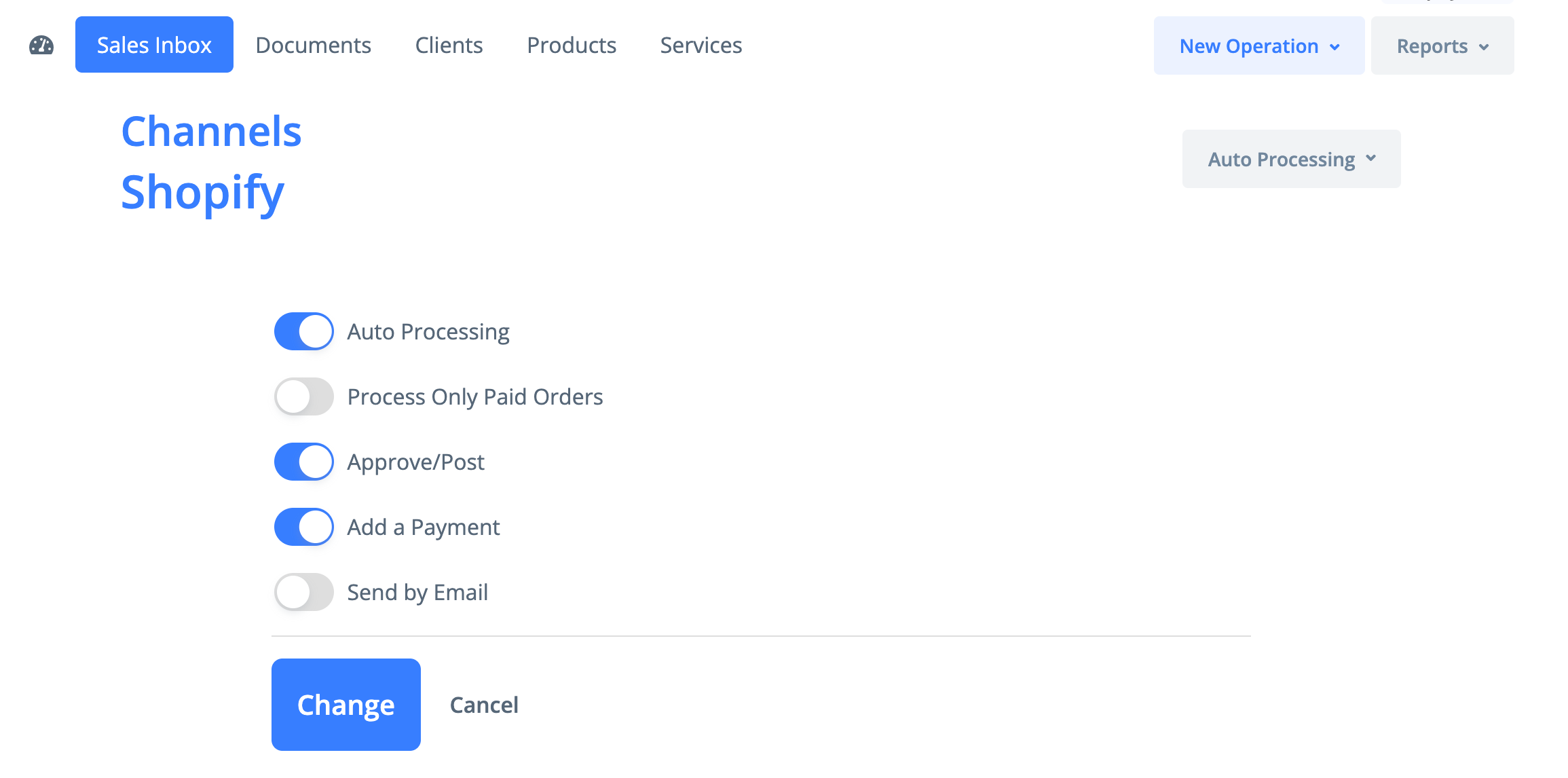
For automatic processing of each order received in Sales Inbox, the "Auto Processing" option must be activated. In this case, when an order is received in Sales Inbox, a sales document will be immediately created from it based on the selected document and operation types from the main settings of the channel.
For automatic confirmation or posting of the created sales document the option "Approve/Post" must be activated.
To add payments automatically, you need to activate the "Add a Payment" option. In case of a document with the type "Sales Order" a new payment will be added as an overpayment.
To send the created document automatically to the client the option "Send by Email" should be activated.
Payments Mapping
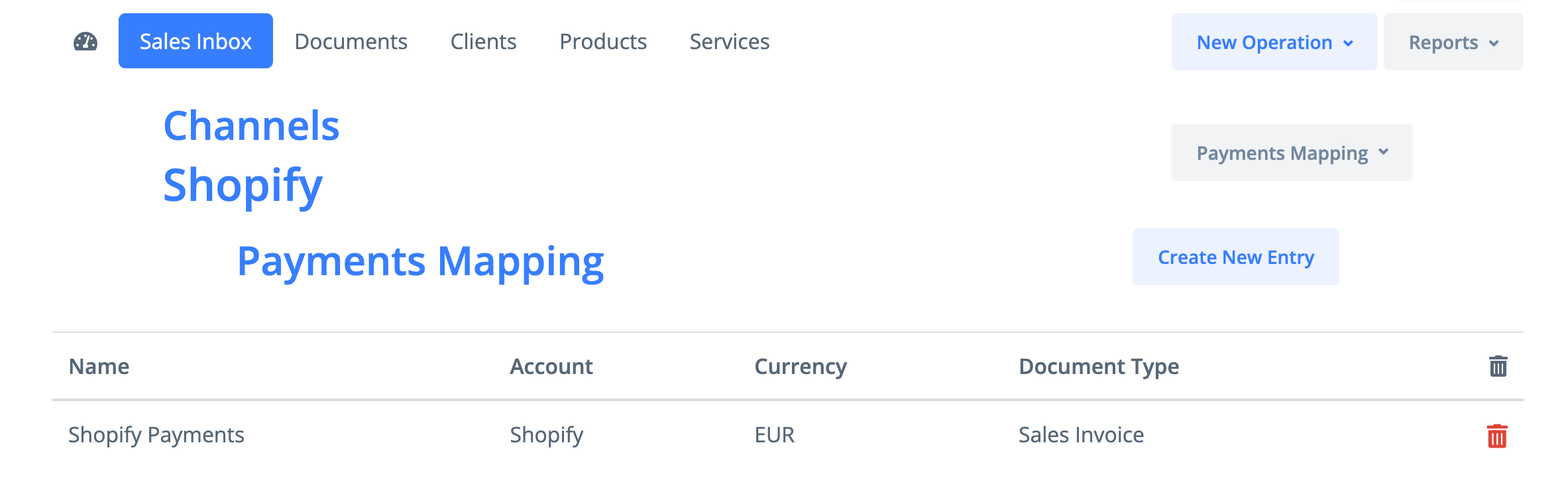
For automatic adding of payments, you need to configure the mapping between payment methods in Shopify and the money accounts in PayTraq. This mapping is necessary for all active online payment methods used in Shopify.
For payment gateways it is recommended to create a money account in PayTraq with the type "Merchant Account".
In case of discrepancy between the total order amount from Shopify and the total amount of the created sales document in PayTraq, the sales document in PayTraq will remain in the "Draft" status. Automatic addition of payment will not happen either. Such discrepancies may occur, for example, due to different rounding of calculated taxes or incorrect application of tax keys.