

Overview
B2B Portal is a tool designed to streamline the process of receiving customer orders. By enabling clients to independently create orders within the PayTraq system, the portal significantly accelerates order processing.
The portal displays all items available for sale, with filtering options by product groups and tags. Prices shown to clients are determined by the pricing group assigned to them, ensuring each client sees their specific pricing.
Clients can create a personalized list of frequently purchased products, enabling quicker searches and faster addition of products to new orders.
Beyond order placement, the portal allows clients to:
Track the status of their orders.
Access their order and delivery history.
View issued invoices.
Verify outstanding balances
The B2B Portal is fully integrated with PayTraq, eliminating the need for a separate administrative panel to manage the portal.
Using the B2B Portal
Step 1: Activation
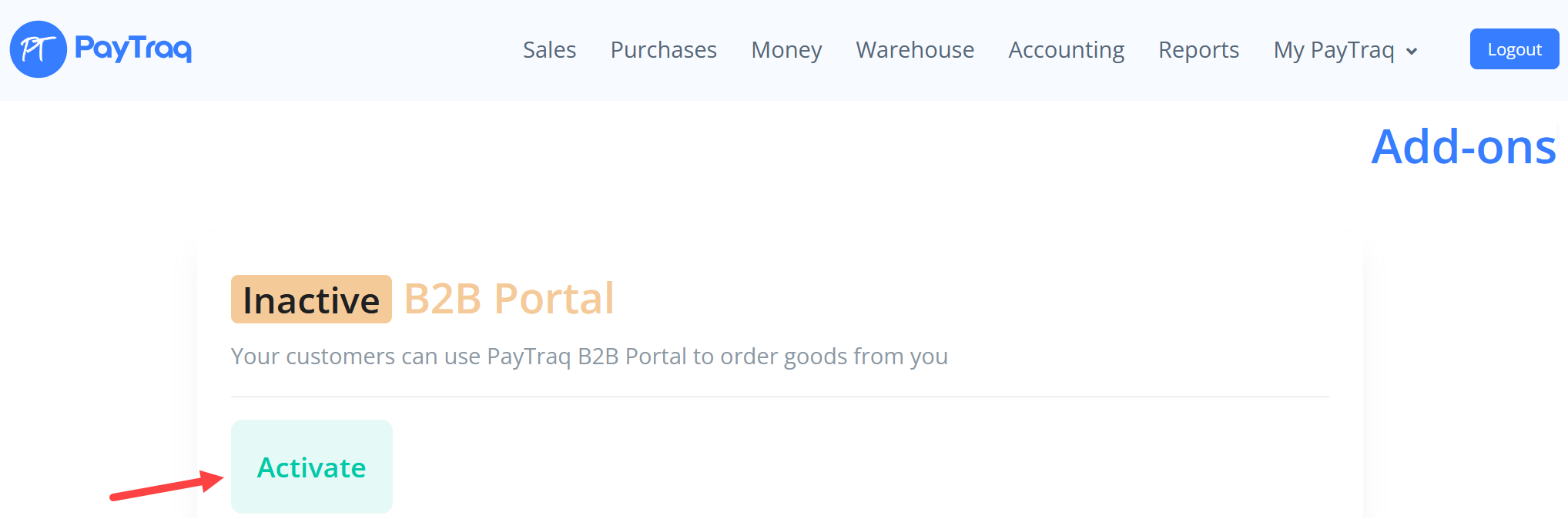
To begin using the B2B Portal, activate it by navigating to My PayTraq > Add-ons > B2B Portal.
Step 2: Client Card Configuration
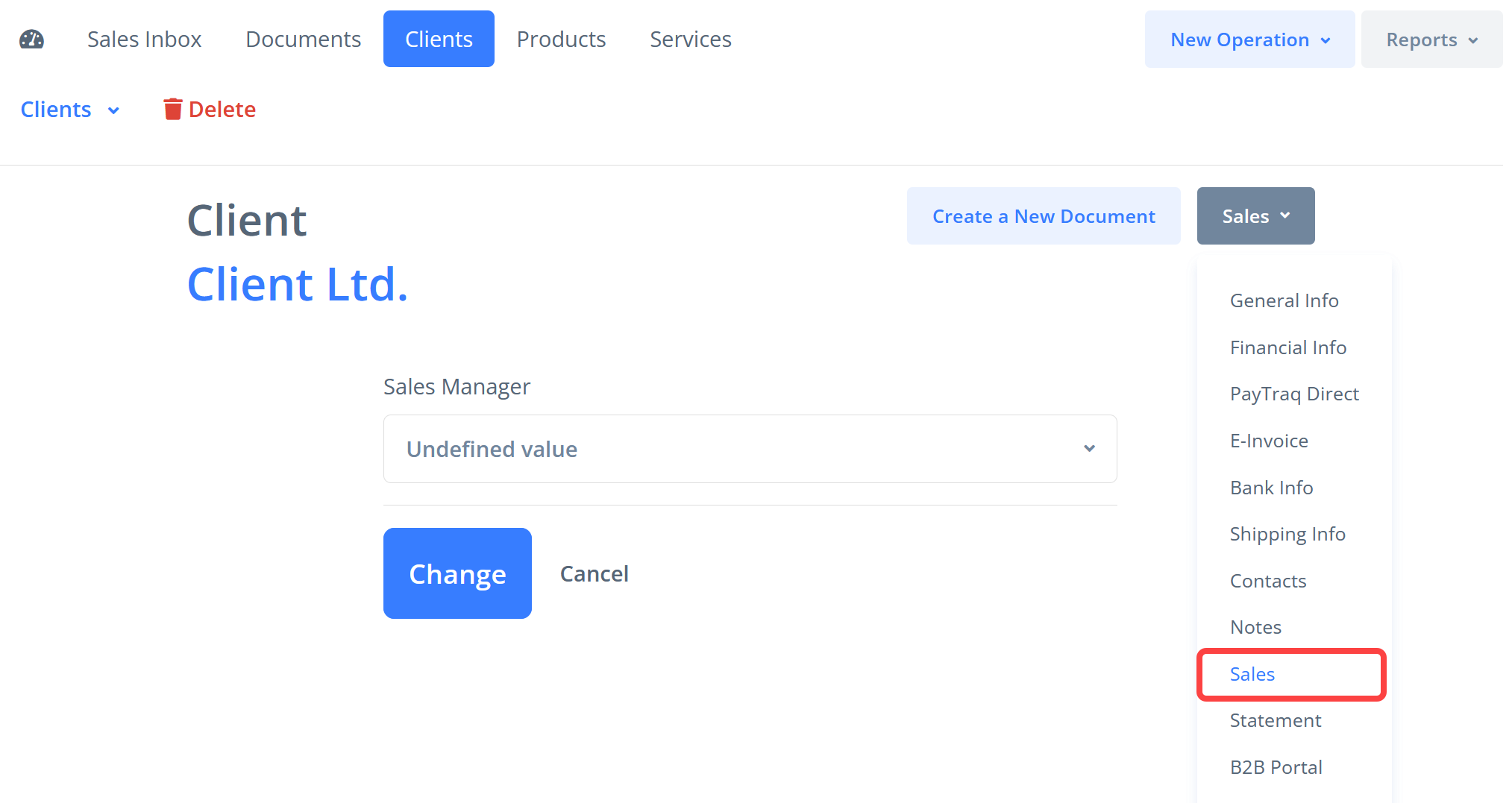
For each client who will use the portal, assign a sales manager in the client’s card under the Sales section. The sales manager is selected from users connected to your PayTraq account.
Step 3: Registering a Portal User for Your Client
The next step involves registering a portal user for your client, granting them access to place orders through the B2B Portal.
In the client’s card, go to the B2B Portal section.
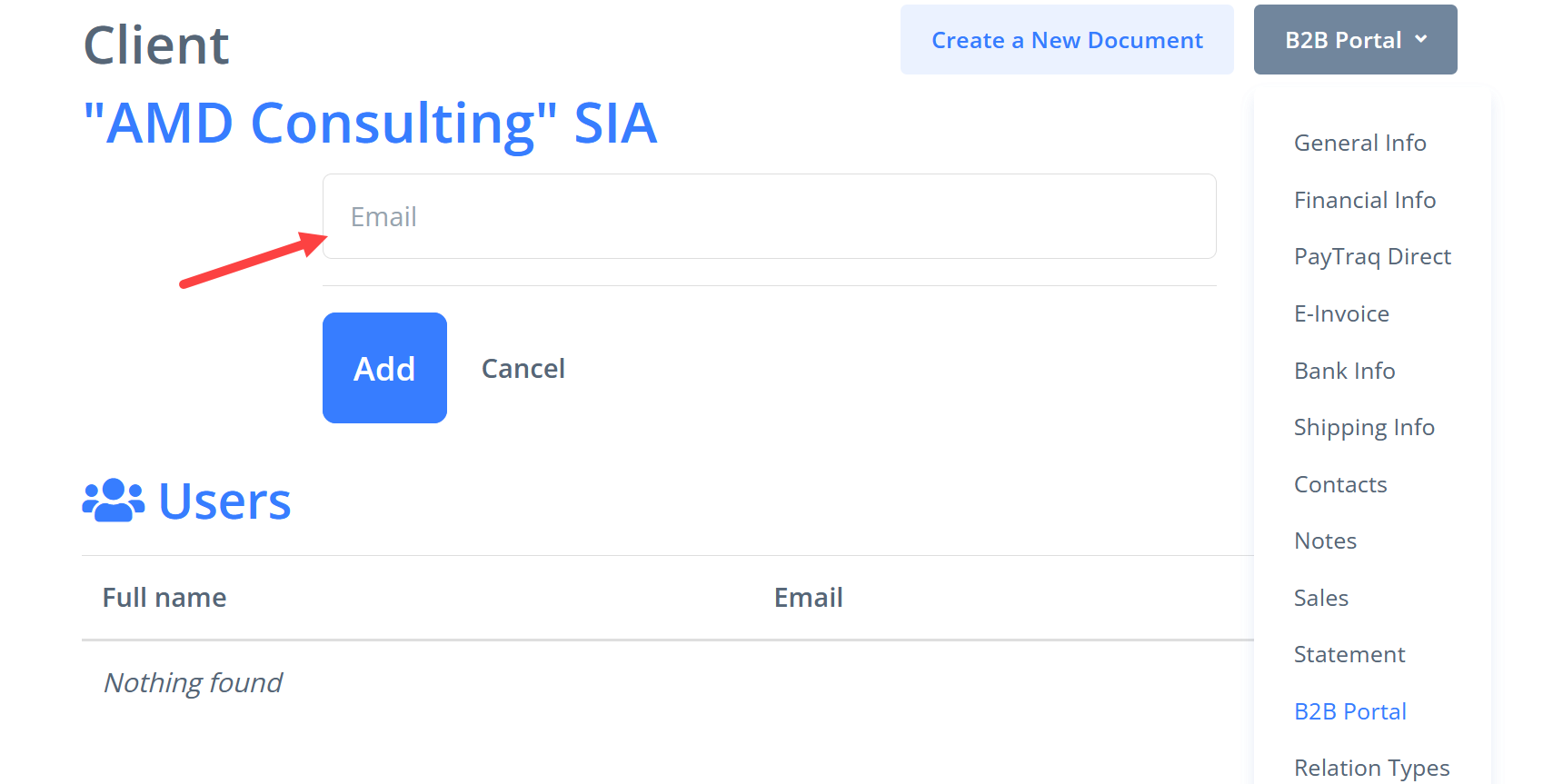
Register a new user who will represent this client on the portal by entering their email address.
The user will receive an email with a registration link.
After completing registration, the user can log in to the B2B Portal at b2b.paytraq.com.
B2B Portal Features for Clients
Once set up, clients can:
View Available Products and their specific Prices: Prices are displayed based on the pricing group assigned to the client. If a product is not included in the client’s pricing group, it will not be visible to them.
Important: If no pricing group is assigned in the client’s profile, the portal will display prices from the default pricing group configured in the settings.
Place Orders Online: Clients can create and submit orders directly through the portal.
Manage a List of Frequently Ordered Products: The Saved Items section allows clients to maintain a list of commonly ordered products, streamlining the ordering process.
Track Orders and Documents: Track order statuses, view issued invoices, and delivery documents – available under My Orders.
Verify outstanding balances and obligations via the Billing Statement section.