

Automatic processing can handle incoming e-invoices or digitised invoices with the operation type Purchasing Services / Other Expenses.
Auto processing allows you to automatically create supplier invoices in the system without manual confirmation. When a new invoice is received, the system automatically generates the document lines and fills in the G/L accounts and tax keys based on the previous documents from this supplier.
With auto processing enabled, when a message is received in the Purchase Inbox, a supplier invoice is created from it immediately and posted automatically.
Automatic processing for future invoices from a specific supplier can be enabled when at least the first invoice from that supplier is processed (or any later invoice, if automatic processing has not yet been enabled).
The checkbox “Automatically process all future invoices from this supplier” is located at the bottom of the form above the confirmation buttons in the Purchase Inbox message or incoming e-invoice preview.
PayTraq Inbox (Digitisation)

E-Invoice

The checkbox is not available if an unsupported operation type is selected (Purchasing Goods / Expense Claim), or if automatic processing has already been enabled for this supplier.
The list of auto processing connections is available in a separate tab of the Purchase Inbox.
By default, when auto processing is enabled, automatic approval of the created journal entries is turned off (the journal remains in “Waiting for approval” status).
Auto approval of the journal can be enabled separately for each supplier by clicking the icon on the left.
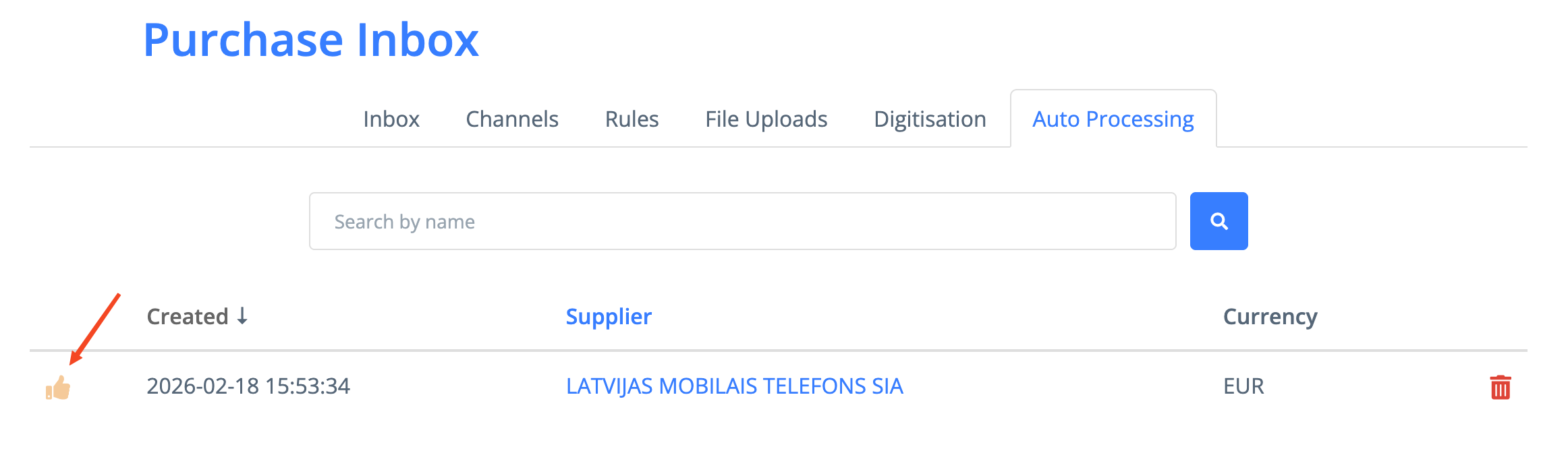
How to disable automatic processing?
To disable automatic processing for a specific supplier, click the trash bin icon to the right of the supplier’s record in the “Autoprocessing” tab in the Purchase Inbox - after that, new invoices from this supplier will no longer be processed automatically.