

PayTraq communicates with PayPal by using PayPal Rest API (PayPal Business account is required)
First you will need to activate PayPal Bank Feed by providing your PayPal App API credentials (Client ID and Secret).
When PayPal Feed is activated then optionally you can proceed with activation of the PayPal Checkout channel in your Sales Inbox.
In PayPal
1) Sign into your business PayPal account and go to the Developer Dashboard by opening https://developer.paypal.com/dashboard. Select Apps & Credentials and create a new App.
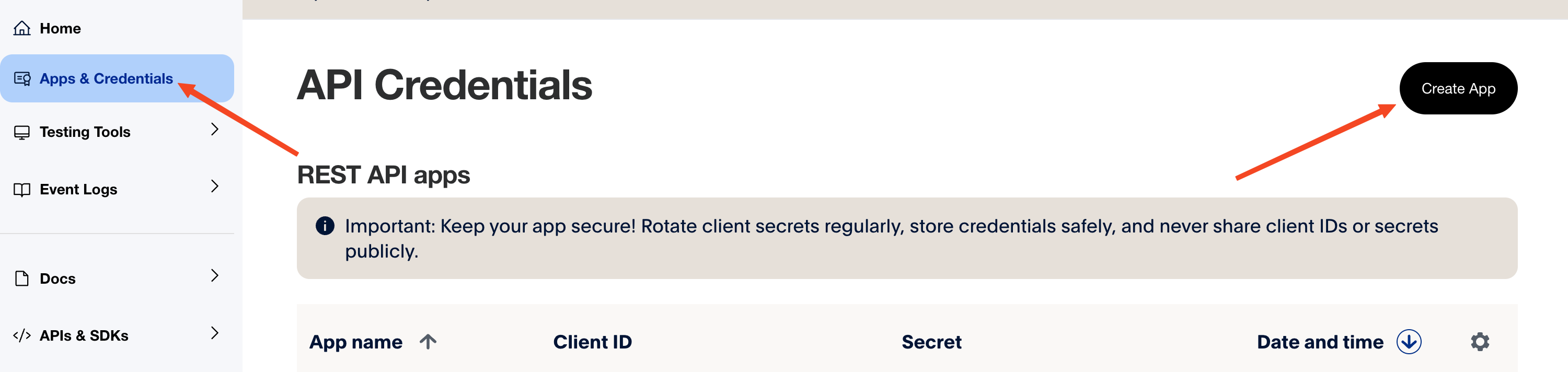
The generated Client ID and Secret will be required to activate the integration.
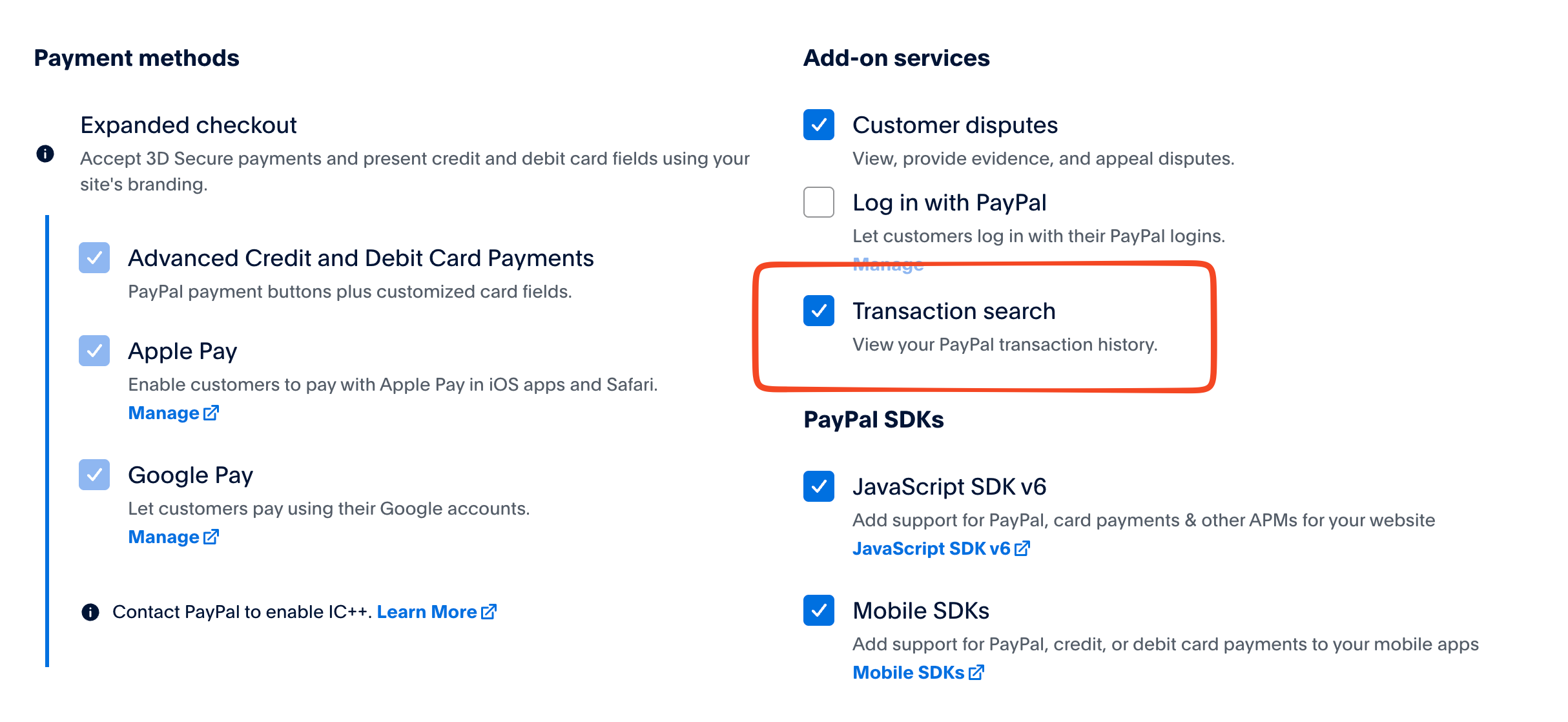
Make sure to enable Transaction search option for your App.
In PayTraq
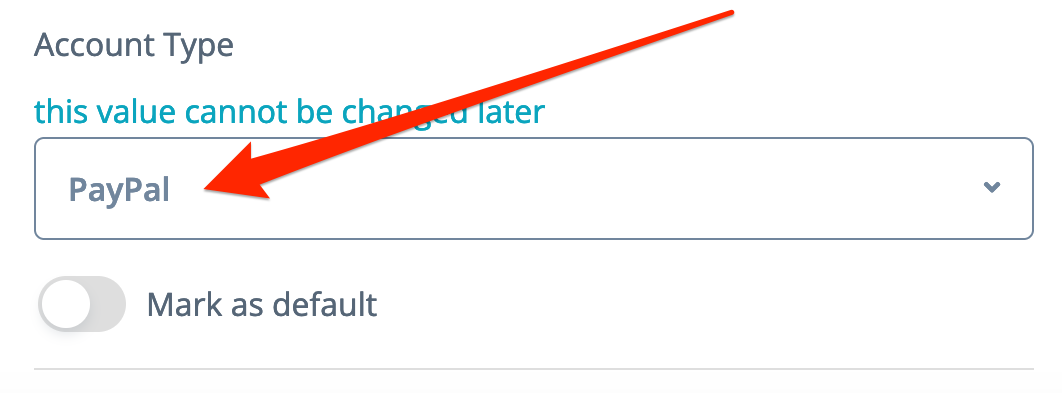
1) Go to Money -> Bank Accounts and create a new bank account with the type PayPal and your PayPal Merchant Account ID (repeat for every PayPal currency you are using)
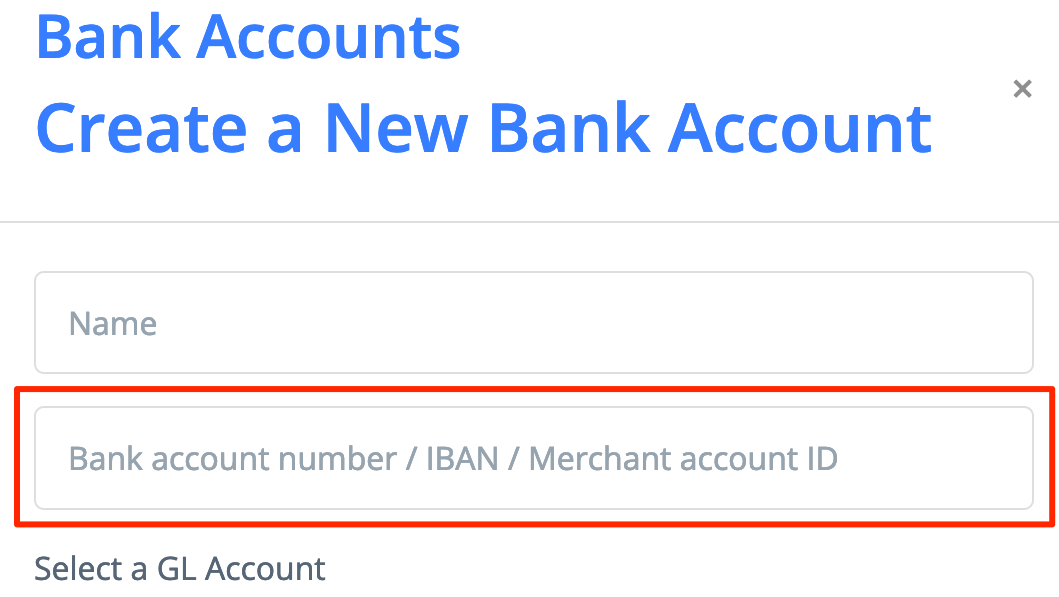
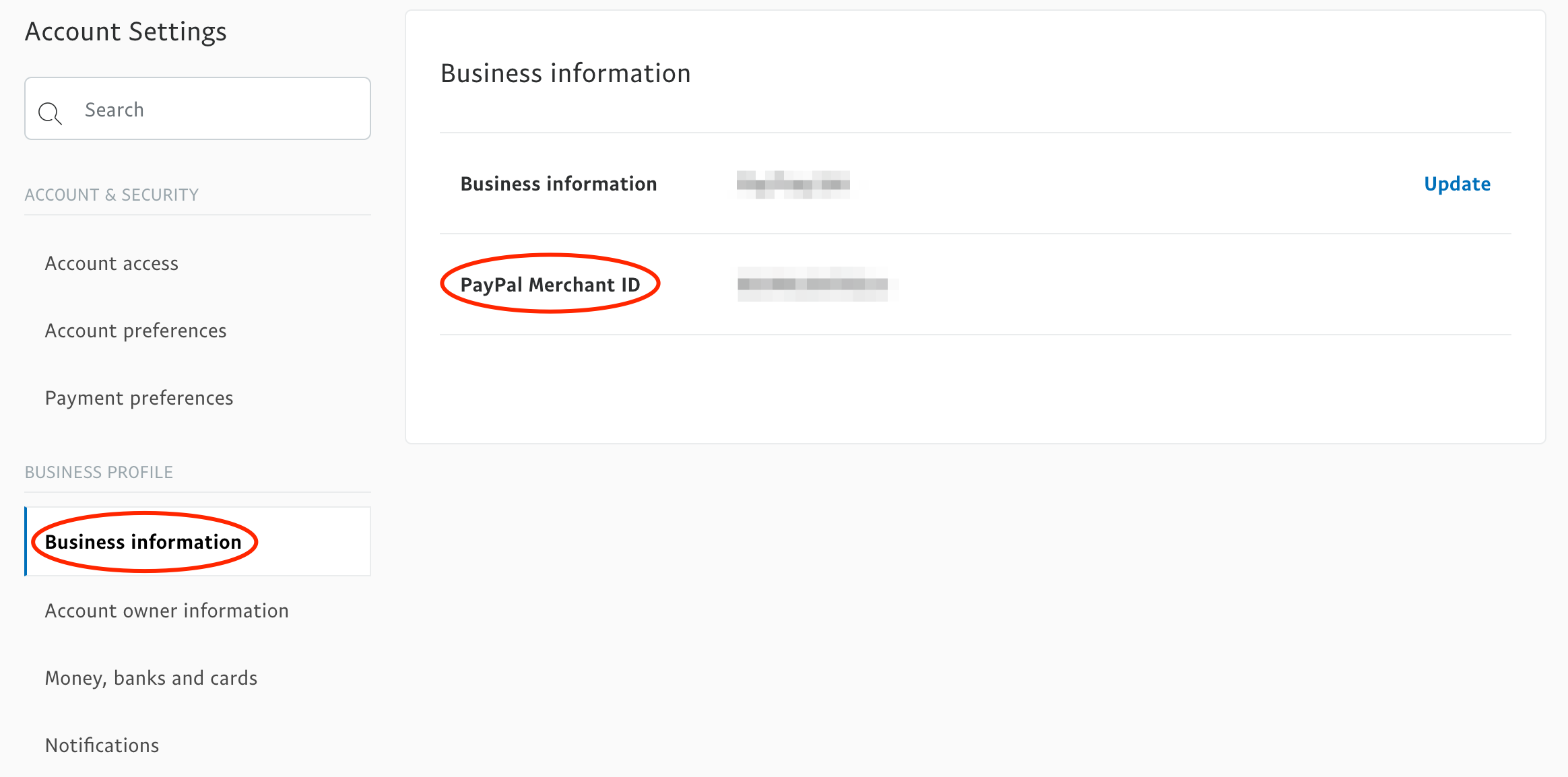
If you do not know your Merchant ID, you can enter it later or copy it from Business information page by going to PayPal Accounting Settings and clicking on Business information.
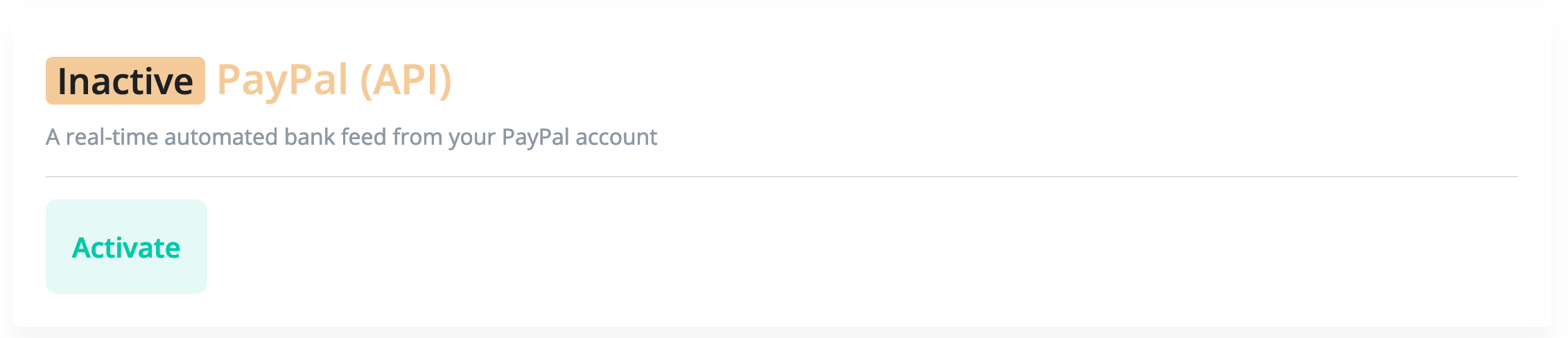
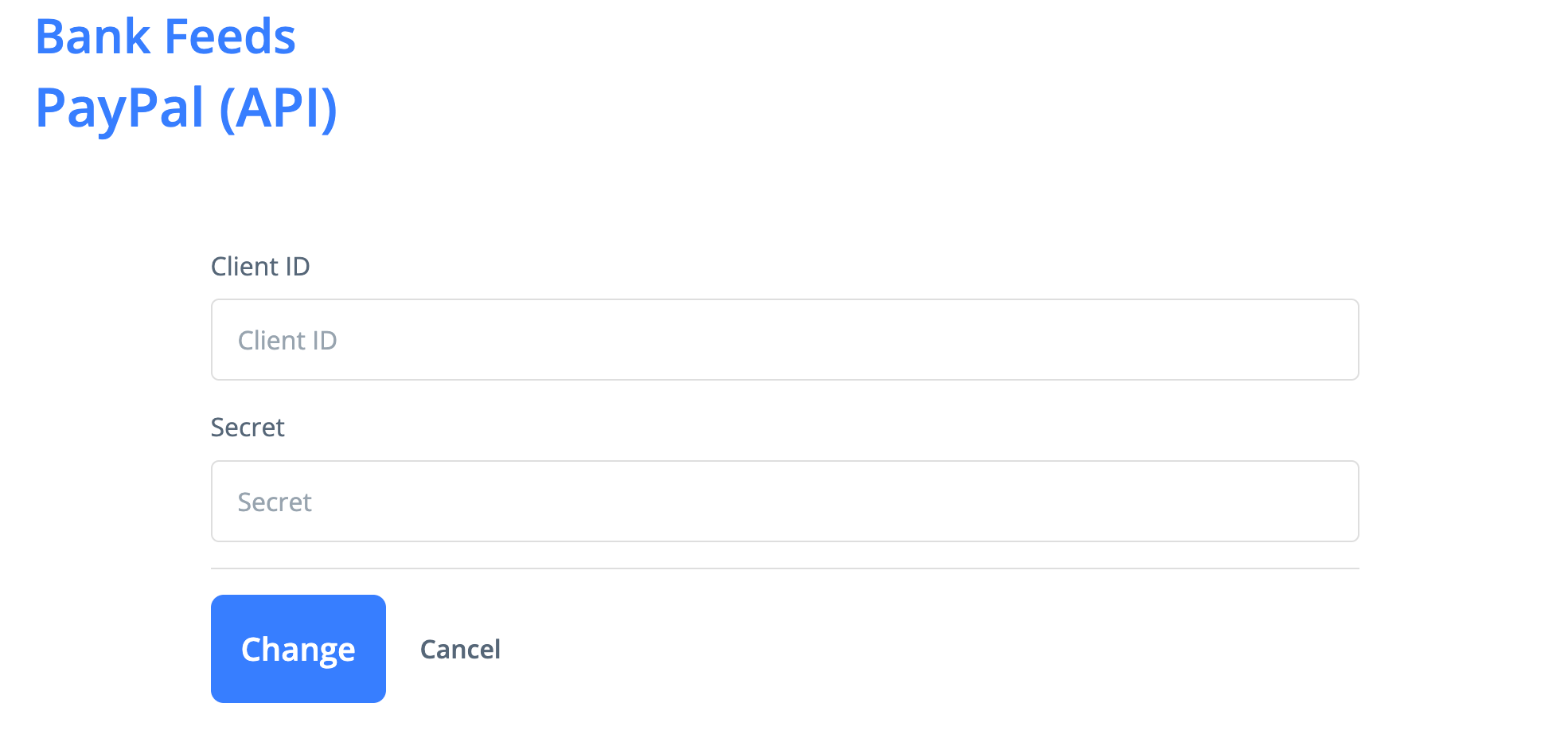
2) Go to Money -> Bank Accounts -> Bank Feeds and activate PayPal Feed by providing your Client ID and Secret.
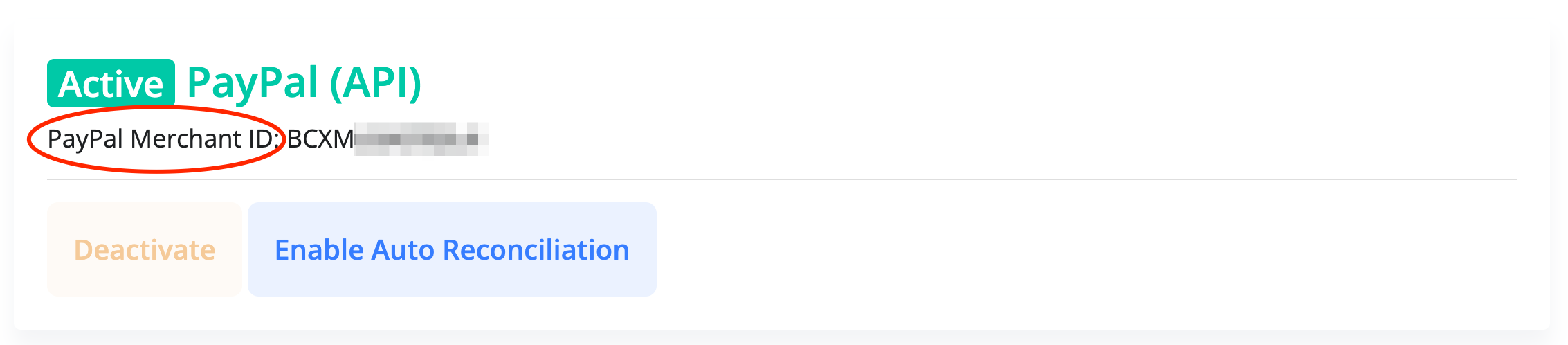
Your Merchant ID will be shown. If you have not entered it before then copy it to the appropriate field of every PayPal bank account you have created.
PayPal Bank Feed is multi-currency so you will need only one feed for your PayPal account.
The PayPal Bank Feed only includes the following transactions:
with the balance affected status
in the same currency of the PayPal account you set up in PayTraq
with the same Merchant ID you entered for your account in PayTraq
PayPal Feed does not include authorizations and does not deliver transactions that temporary affects PayPal balance such as Temporary Hold, Fund Availability and Rolling Reserves.
Once activated, the transactions for the last 7 days will be uploaded.
All new transactions and current balance are uploaded every 30 minutes.
PayPal Checkout
Optionally you can go to Sales -> Sales Inbox -> Channels and activate PayPal Checkout channel to receive shopping cart orders that have been passed to PayPal.
The cart items should be available in PayPal transaction details.
Add PayPal as a payment option for your invoices
You can also use PayPal to accept online payments for your sales invoices quickly and easily.
To activate PayPal payment option all you need to do is to go to Money -> Bank Accounts -> Online Payments, select PayPal API option and enter your Client ID and Secret. This will activate PayPal payment option on the invoice online link.