

PayTraq allows you to send various documents — such as sales orders, estimates proformas, invoices, or balance confirmations, and more to multiple partner email addresses at once.
To add additional contact information, open the client’s or supplier’s card and go to the Contacts section.
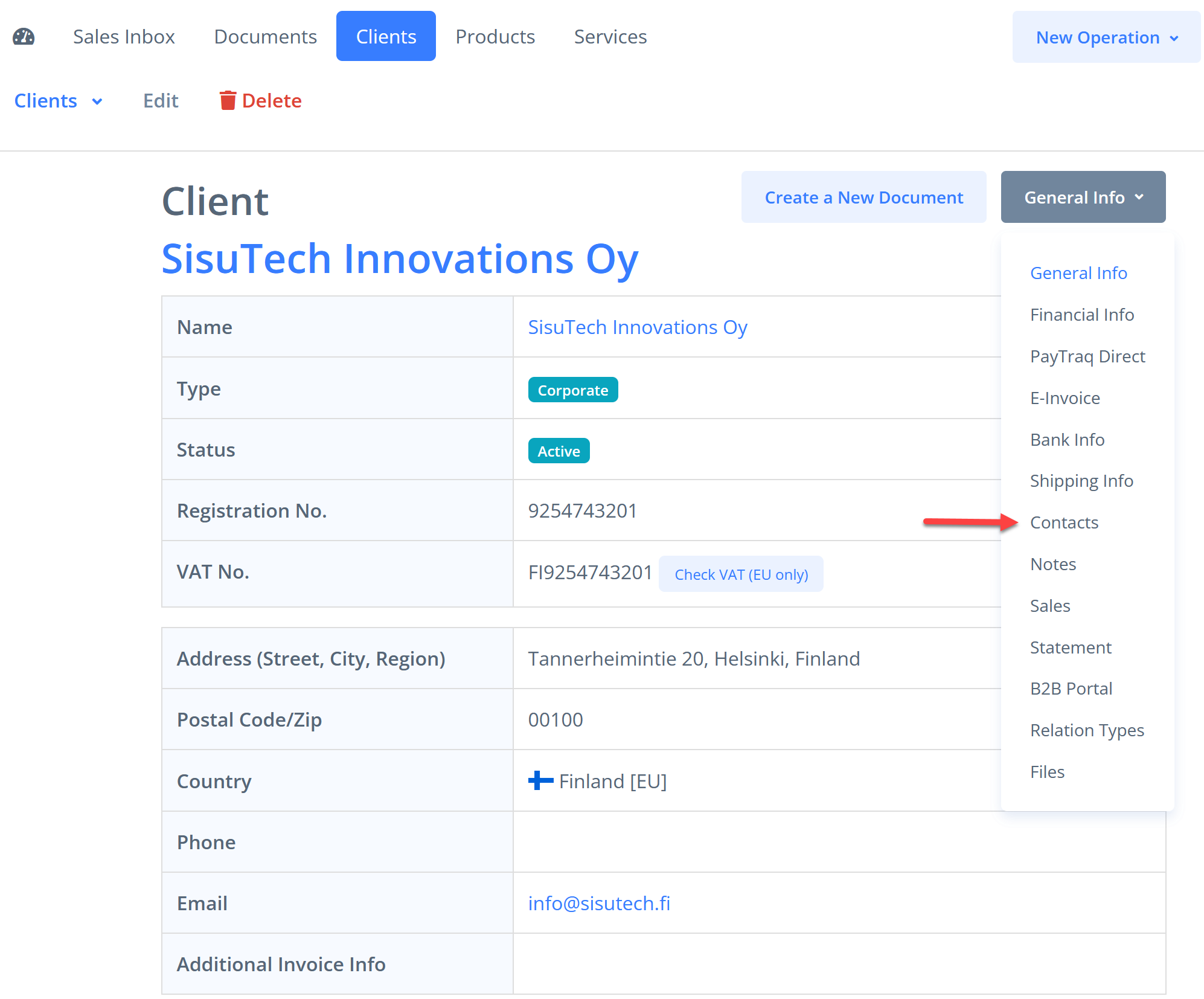
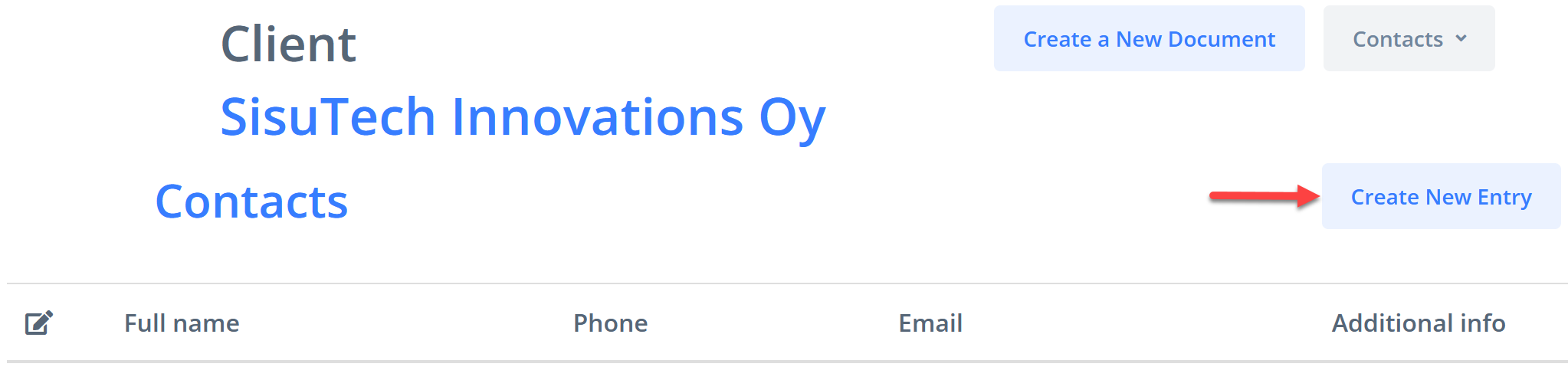
Click the "Create New Entry" button.
Fill out the form with the contact details of the new recipient.
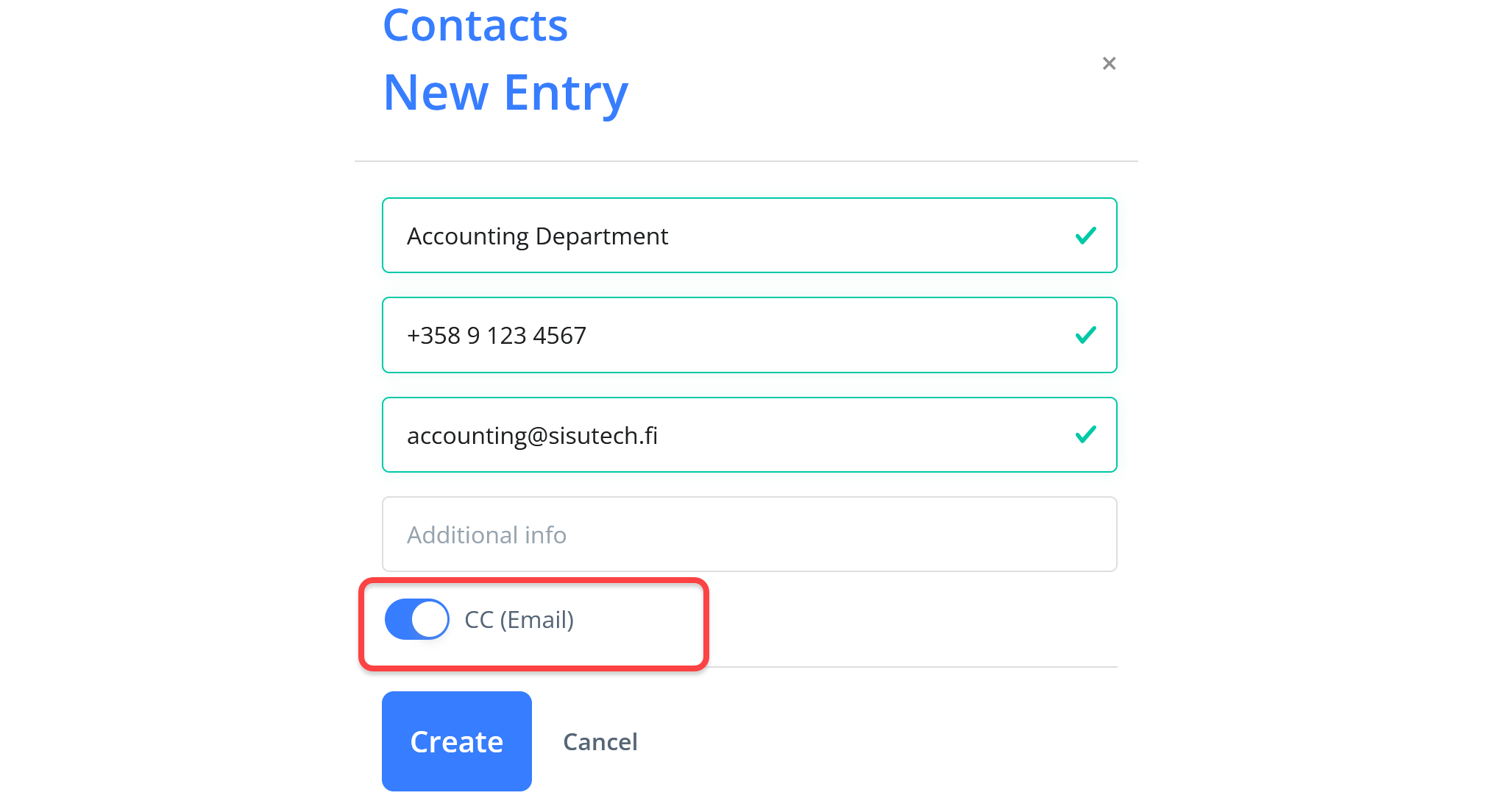
If you want all documents sent to this partner to always include this email address by default, activate the CC (Email) checkbox.
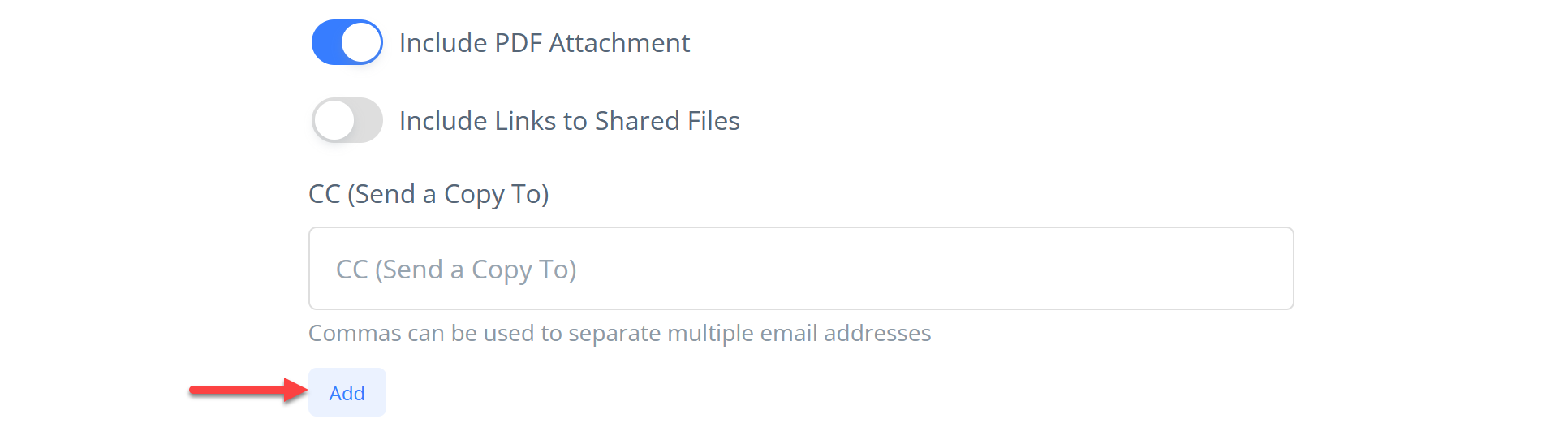
If you do not select CC (Email), the new contact will not appear in the list of recipients by default. However, you can easily add saved recipients while sending by clicking Add at the bottom of the document sending form.
Information about sent emails is available within each document in the "Message Log" section.

A complete log of all sent messages is available under Sales → Clients → Message Log
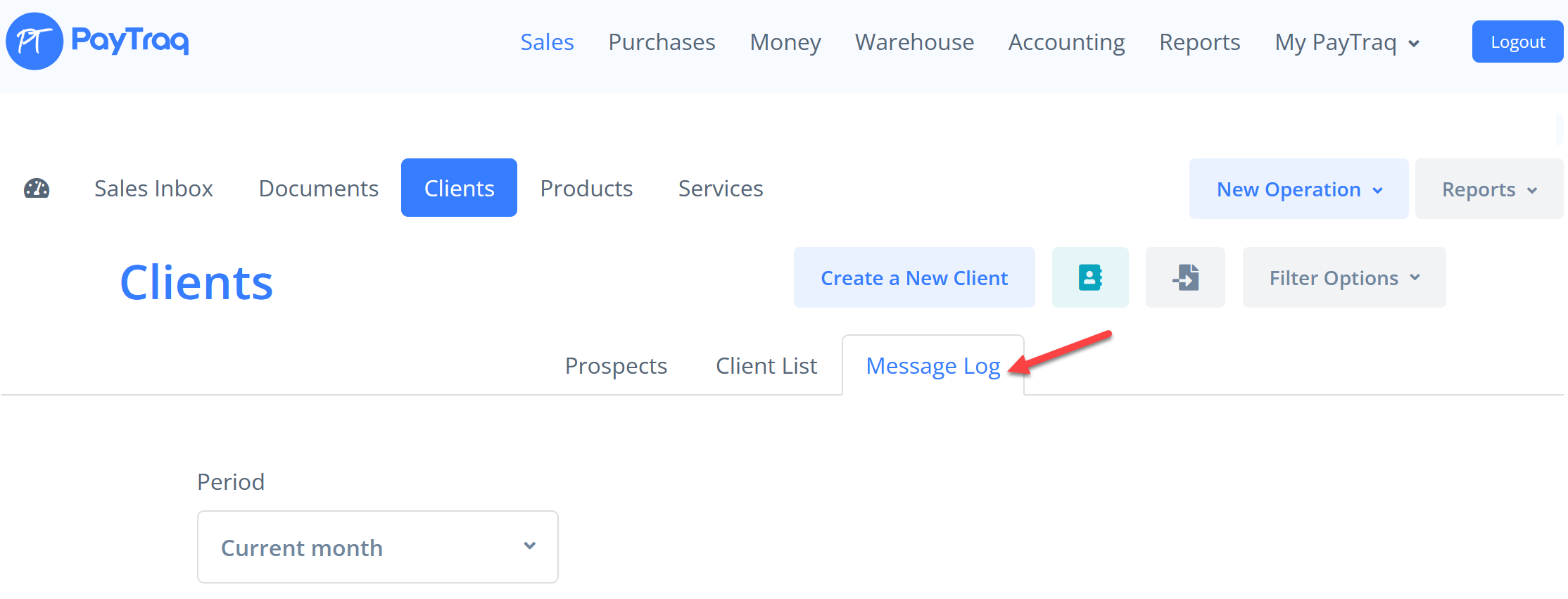
or Accounting → Business Partners → Message Log (this also includes non-sales documents, such as balance confirmations).