

The deferred revenues functionality is designed to accurately allocate income received from the sale of services across multiple calendar periods. This mechanism ensures that income, which will be recognized in the future, is correctly reflected, rather than being fully recognized at the time of issuing the sales document.
Creating a Document with Deferred Revenues
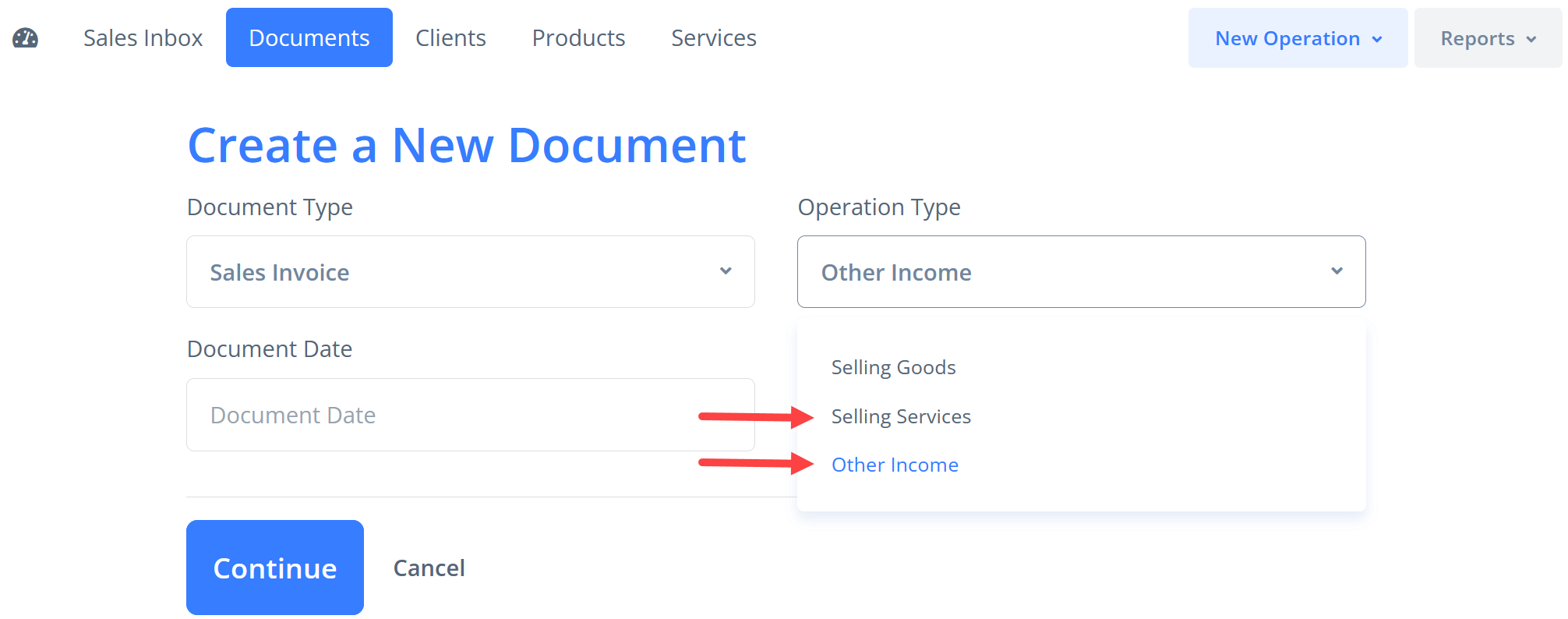
Deferred revenue accounting is available for sales invoices with the operation type selected as Selling Services or Other Income.
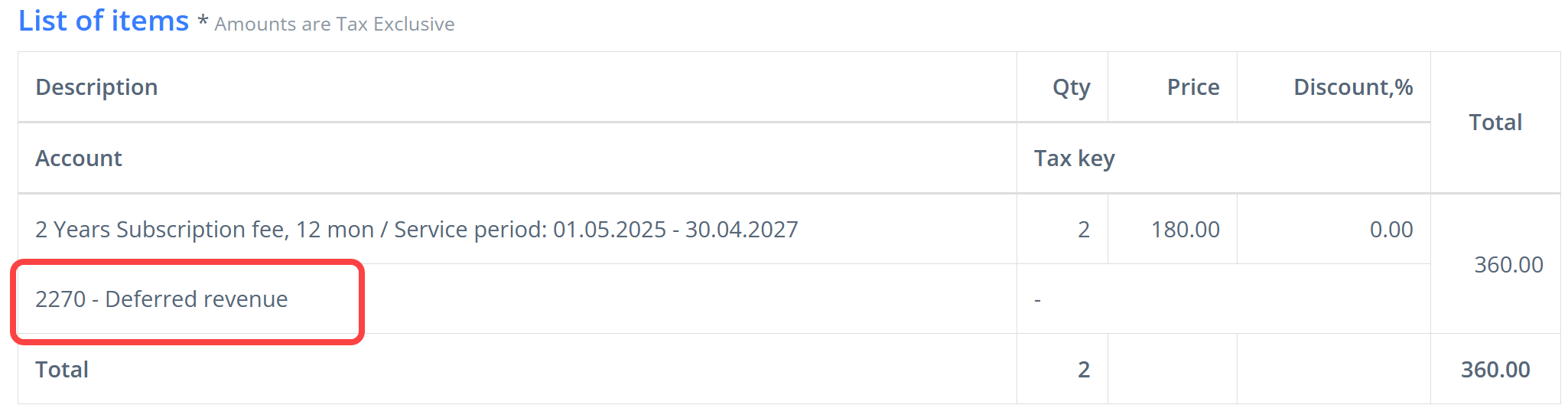
When creating a sales invoice, select a GL account from the Deferred Revenues group in one of the document lines.
A single document may contain multiple such lines, which can use either the same or different GL accounts from the Deferred Revenues group.
Deferred Revenues section
After confirming the invoice (by clicking the Post button), a Deferred Revenues section becomes available in the document’s menu under General Info.
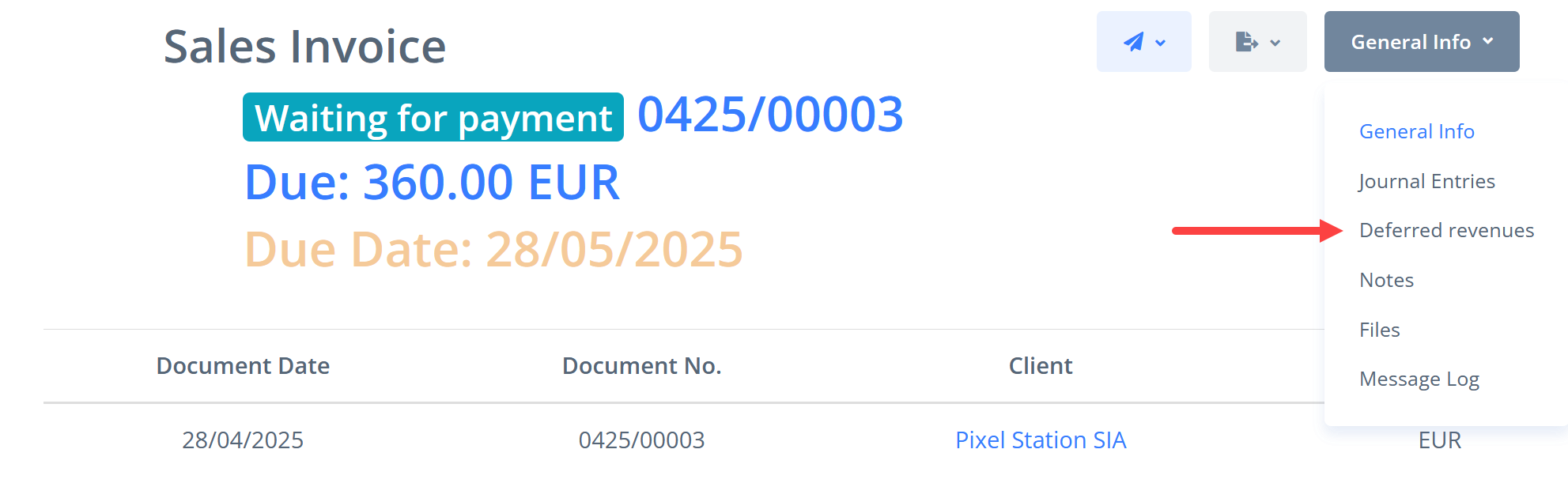
In this section, users can create a schedule for distributing the amount specified in the document’s lines across future periods, i.e., when the revenue recognition will occur.
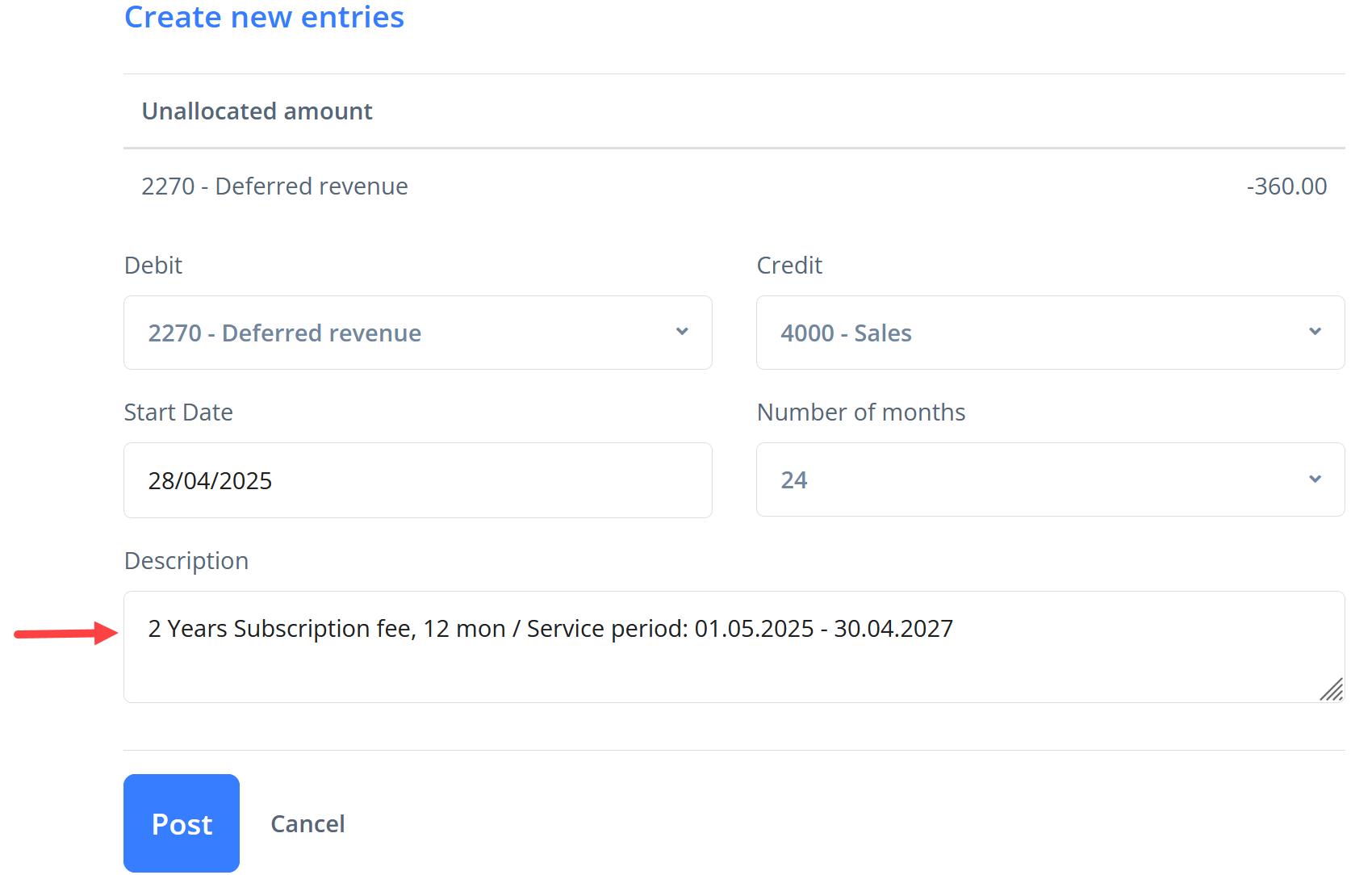
At the top of the section, an informational panel labeled Unallocated amount shows the portion of deferred revenues from the document that have not yet been included in the allocation schedule.

Creating an Allocation Schedule
To create an allocation schedule, select the appropriate revenue account for recording the recognized revenue in the Credit field (e.g. a revenue account for service provision or other income).
The Debit field automatically displays the default account for deferred revenues. If needed, another existing account from the Deferred Revenues group of your chart of accounts may be selected.
Setting Posting Dates
In the Start Date field, specify the date of the first revenue recognition posting (the first date in the schedule must not be earlier than the invoice date!). Subsequent postings will automatically be generated at one-month intervals.
Period Settings
In the "Number of Months" field, pick the revenue recognition period from a dropdown list. The available range is from 1 to 36 months. The unallocated balance will be evenly distributed across the selected number of periods.
Filling Out the "Description" Field
The Description field is used to enter information that will appear in future revenue recognition postings, helping to identify the source of each posting.
If the invoice contains a single deferred revenue line, the Description field is automatically populated with the text from this line, which can be edited by the user.
If there are several such lines, the Description field remains blank, and its completion is left to the user's discretion.
Generating the Posting Schedule
After clicking the Post button, a posting schedule will be created to recognize the unallocated balance in equal parts over the selected number of periods. All generated postings are immediately displayed in the Deferred Revenues section of the respective invoice.
The unallocated balance for the selected account from the Deferred Revenues group will become zero.
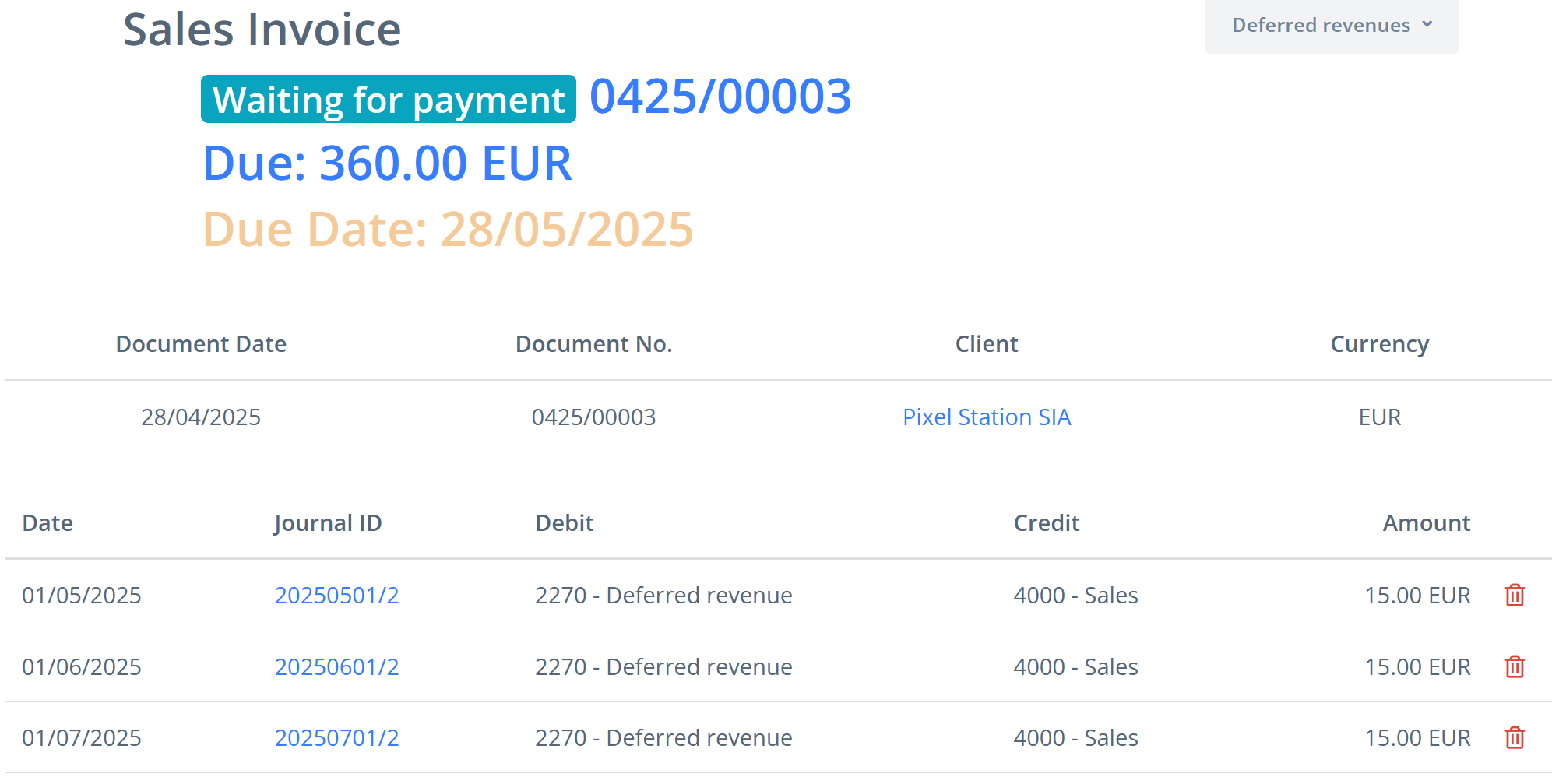

If the sales invoice used multiple accounting accounts from the Deferred Revenues group, a separate recognition schedule must be created for each account.
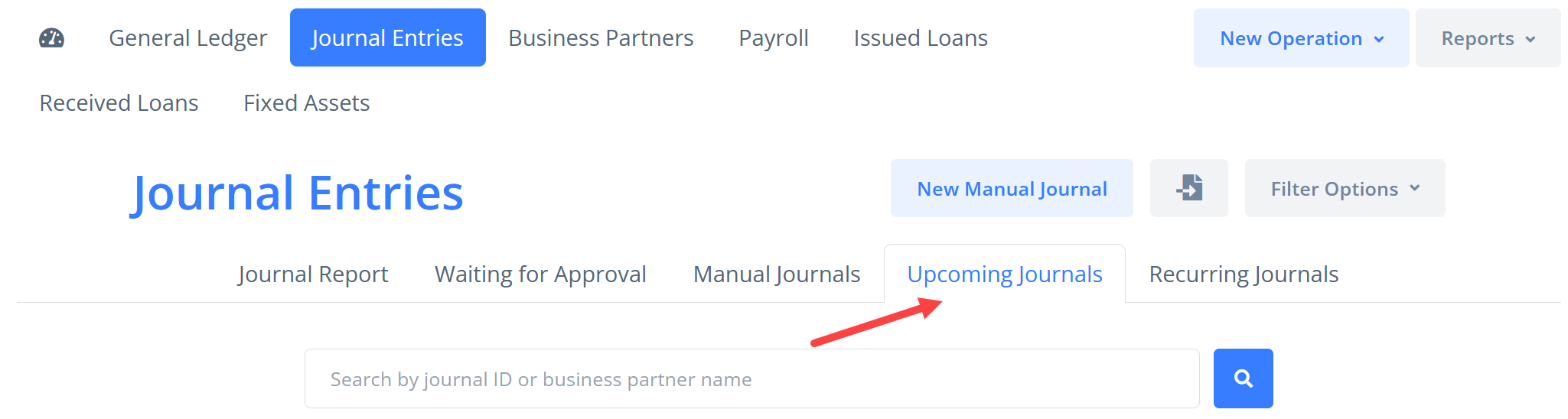
A complete list of all deferred revenue recognition postings is accessible in the Upcoming Journals tab under Accounting → Journal Entries.
Adjustments
If necessary, one or more future postings can be deleted. To do so, in the Deferred Revenues section of the respective invoice, click the Trash icon next to the desired posting.
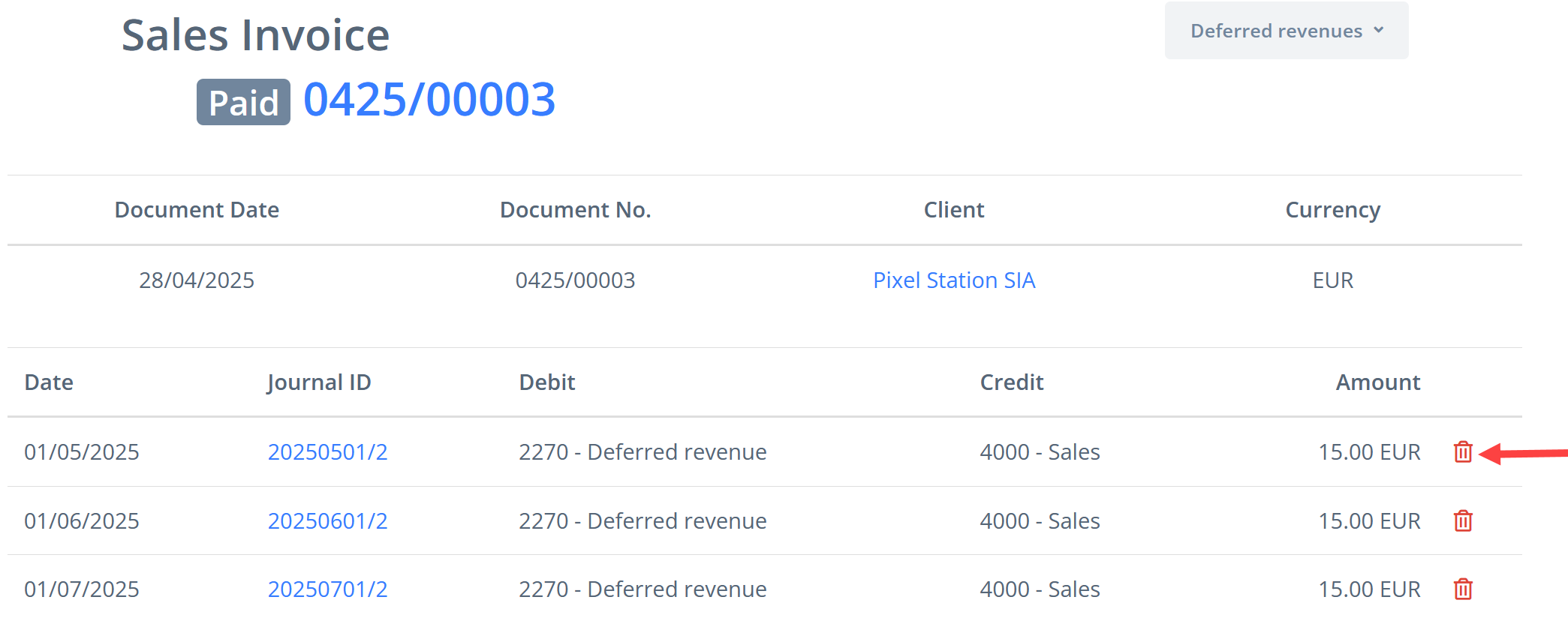
Deleting a selected posting does not affect the others.
After deleting one or more future postings, the unallocated balance is recalculated, displaying the amount available for creating a new revenue recognition schedule.
Canceling Invoice Confirmation
If the invoice confirmation is canceled, all postings related to deferred revenue recognition are automatically deleted. After reconfirming the invoice, the allocation schedule should be re-created.